
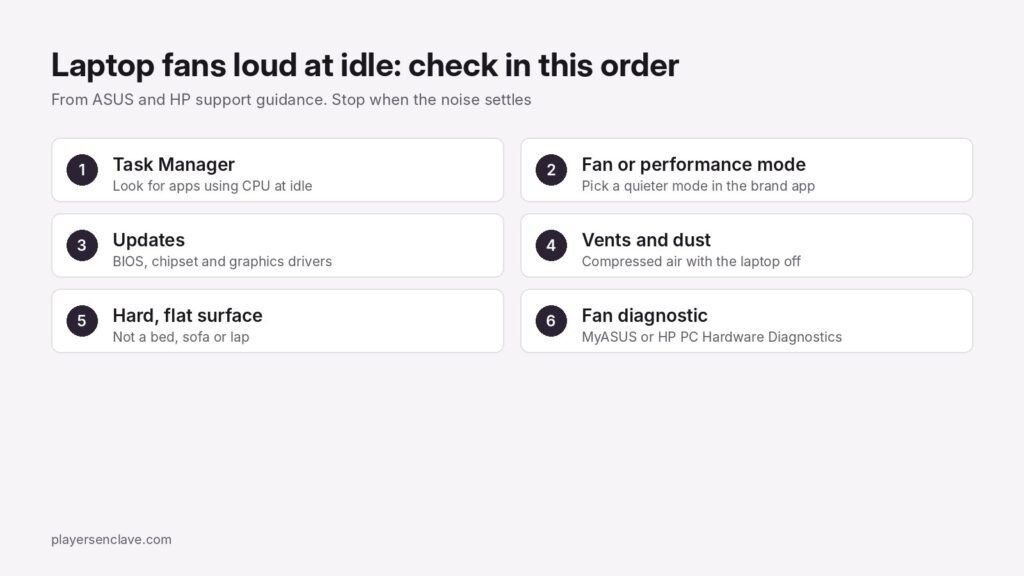
Quick answer: Loud fans at idle usually mean something is still making heat. Open Task Manager and look for an app using the CPU, switch your brand’s control app to a quieter fan or performance mode, install BIOS and driver updates, and clean the vents with compressed air while the laptop is off. If the noise continues on a hard, flat surface with nothing running, run your brand’s fan diagnostic.
Checked against ASUS’s overheating and fan troubleshooting FAQ and HP’s guide to fixing a noisy laptop, November 2026.
Is it normal for the fans to run at idle?
Sometimes. ASUS’s fan FAQ explains that many models keep the fans off until the laptop reaches a set temperature, so a fan that spins up now and then is doing its job. The same FAQ notes that fans can keep running in sleep mode while the CPU and GPU are still warm, and suggests hibernation if that bothers you. A fan that stays loud with nothing open is the case worth fixing.
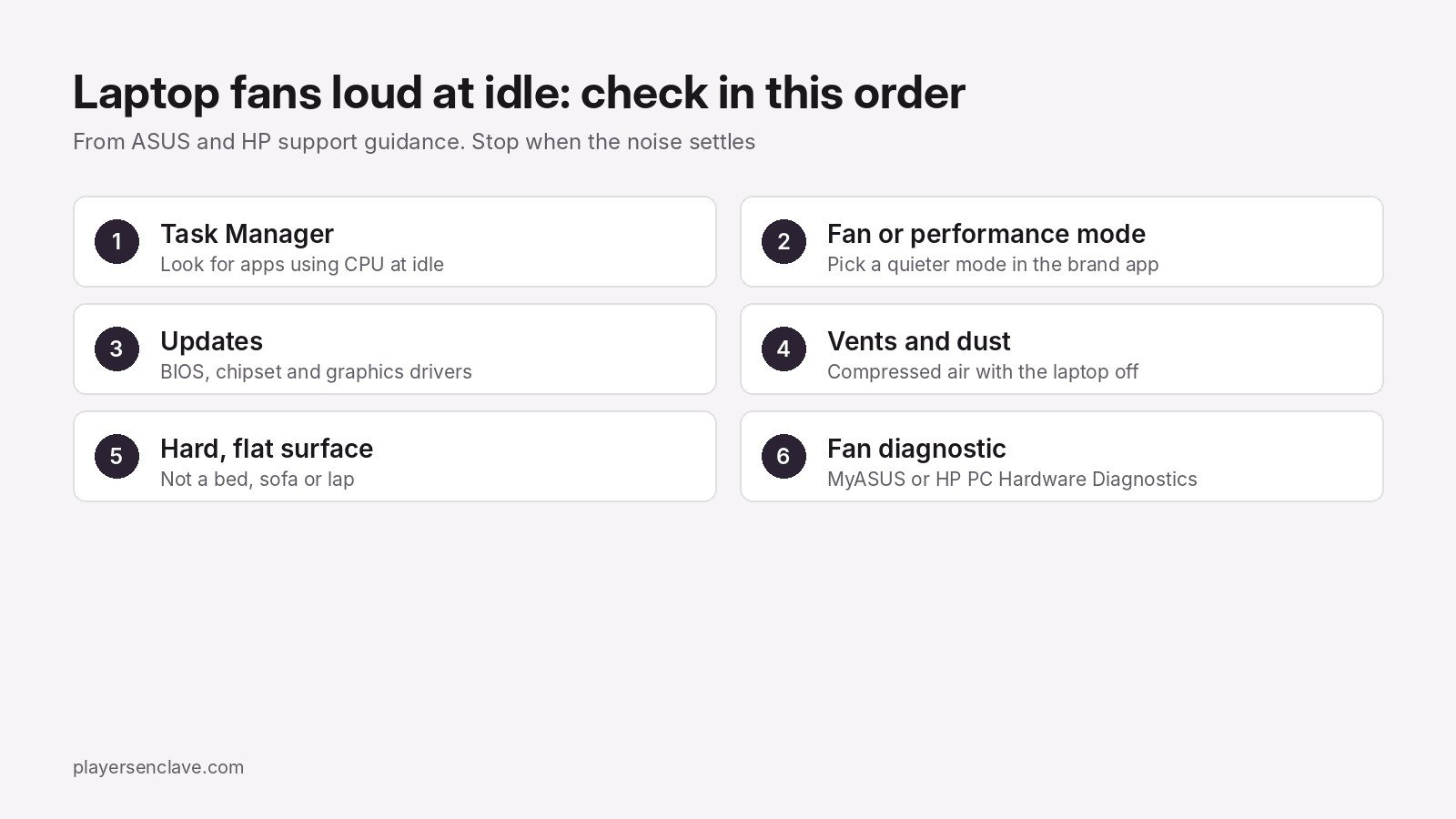
1. Look for a busy app in Task Manager
Press Ctrl + Shift + Esc and sort by CPU. ASUS’s FAQ says to end any process using far more CPU or memory than you would expect, and HP’s noisy laptop guide gives the same advice for background apps and browser tabs. If the same app keeps returning, remove it from startup apps.
2. Pick a quieter fan or performance mode
If the laptop is still in a performance mode from your last game, switch it back. ASUS points ROG and TUF owners to Armoury Crate and other models to the Fan Mode setting in MyASUS. HP suggests a Balanced or Power Saver plan rather than High Performance, and notes that some OMEN models set thermal profiles in OMEN Gaming Hub. Our guide to gaming laptop performance modes shows the quiet mode on each brand, and Gigabyte owners can use our Gigabyte fan modes guide.
3. Install BIOS and driver updates
Both ASUS and HP list updates as a fix: the BIOS, chipset drivers and graphics drivers. Use the updates listed for your exact model on the maker’s support page or in its own update tool.
4. Clean the vents
Power the laptop off and unplug it, then use a can of compressed air on the vents. ASUS says to keep some distance from the vent, not to turn the can upside down, and not to use an air compressor, because too much pressure can damage the fan blades. For heavy dust buildup inside, ASUS recommends contacting its service centre rather than opening the laptop.
5. Check where the laptop is sitting
Beds, sofas and pillows block the air intakes. Both brands say to use a hard, flat surface, and ASUS gives an operating range of 5°C to 35°C room temperature. A stand or cooling pad can help airflow, though our look at laptop cooling systems explains why the laptop’s own design matters most.

6. Run the fan diagnostic
- ASUS: in MyASUS, open System Diagnosis, then Diagnostic Tool, choose Fan and click Checkup. If it reports a fault, ASUS directs you to a service centre.
- HP: restart, press Esc, then F2 to open HP PC Hardware Diagnostics, and run the System Extensive Test and Fan Test.
One caution from ASUS: third-party temperature tools do not measure the chassis temperature and should not be used to diagnose a hardware fault. Rely on the brand’s own diagnostic.
If none of this helps
If the problem started recently, ASUS suggests System Restore to a point before it began. A grinding or rattling noise, or a failed diagnostic, points to the fan itself, which is a warranty matter. Our guides to gaming laptop warranties compared and making a gaming laptop last cover the next steps. If the fan control app itself will not open, see our fixes for Armoury Crate, MSI Center and OMEN Gaming Hub.
Photo by Matheus Bertelli on Pexels, free to use under the Pexels License. Diagram: PlayersEnclave.