
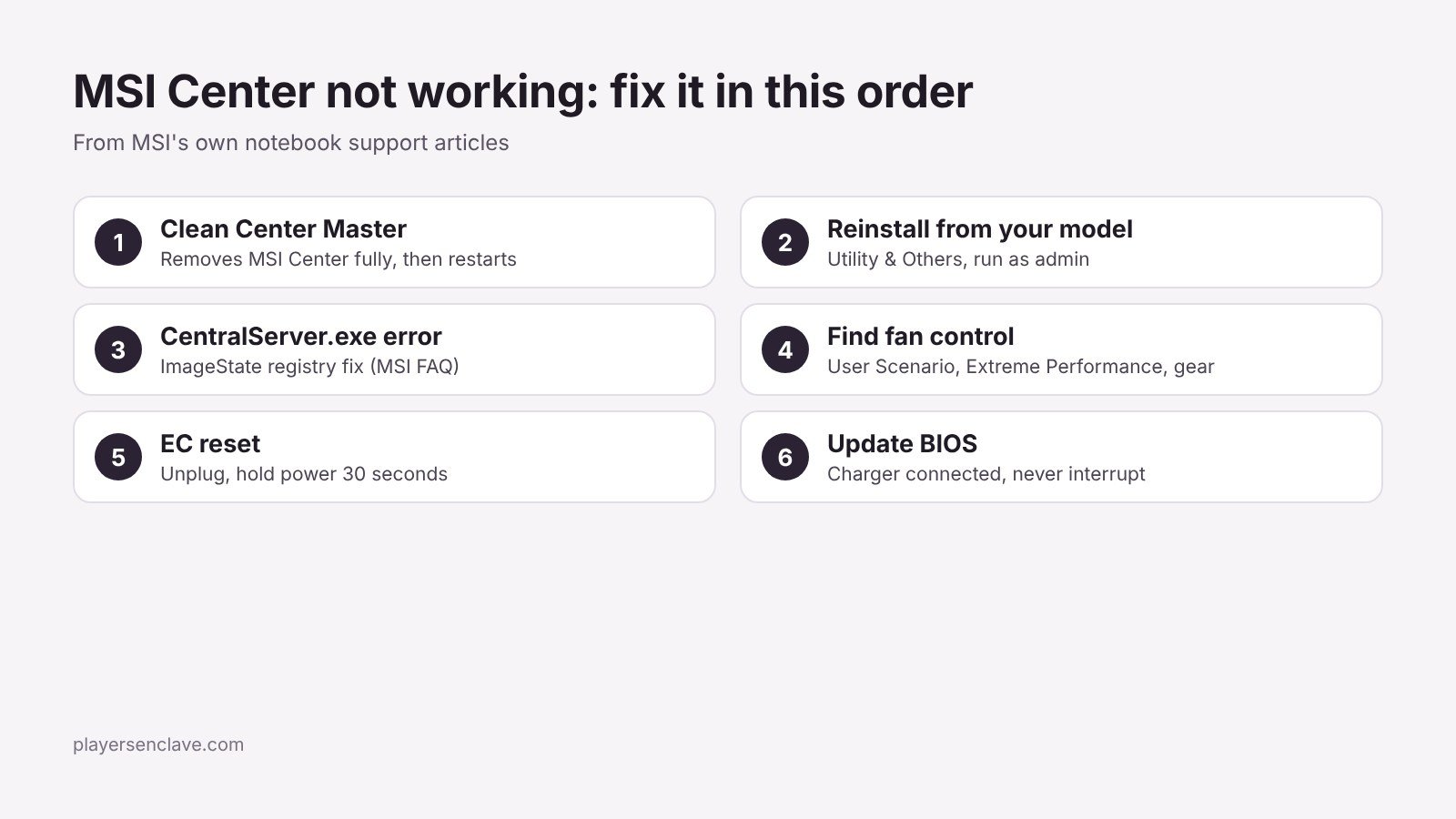
Quick answer: Remove MSI Center completely with MSI’s Clean Center Master tool, let the laptop restart, then reinstall MSI Center from your model’s support page and run it as administrator the first time. If fan settings are missing, switch the User Scenario to Extreme Performance and open the gear icon. If the fans still ignore your settings, do an EC reset and update the BIOS.
MSI Center is the control app on most current MSI laptops. It sets performance modes, fan speeds and battery behaviour, so when it fails the laptop can run louder or slower than it should.
Steps checked against MSI’s support articles and notebook FAQs, November 2026.
Fix 1: Clean reinstall MSI Center with Clean Center Master
A damaged install causes most failures, and a normal uninstall often leaves pieces behind. MSI’s own clean install FAQ applies to all MSI laptops that support MSI Center, Dragon Center (UWP) or MSI Center Pro:
- Save your work. Download MSI’s Clean Center Master tool from the FAQ, open it and click Clean. It removes MSI Center and its components, clears its cache, and restarts the laptop when it finishes.
- On your model’s page at msi.com, open Support and find MSI Center under Utility & Others. The link opens the Microsoft Store; click Get or Install.
- Search for MSI Center in the taskbar, right-click it and choose Run as administrator. Wait while it initialises, and click Restart now if asked.
If MSI Center is not listed for your model, MSI’s clean installation guide says the product does not support it. Older models may use Dragon Center instead.
Fix 2: The “MSI.CentralServer.exe is abnormal” error
This error usually follows a self-installed or clean install of Windows. MSI notes that laptops still on their factory Windows install do not get it. MSI’s fix is a registry change:
- Back up the registry first. Press Win + R, type
regeditand press Enter. - Go to
HKEY_LOCAL_MACHINE\SOFTWARE\Microsoft\Windows\CurrentVersion\Setup\State. - Open ImageState. If it already reads
IMAGE_STATE_COMPLETE, stop and contact MSI support. Otherwise set it toIMAGE_STATE_COMPLETEand click OK. - Restart and open MSI Center.
Safety note: change only this one value. Editing other registry entries can stop Windows from working properly.
Fix 3: Find the fan settings in MSI Center
Fan control is easy to miss because it only appears in one mode. MSI’s fan speed FAQ puts it here: open User Scenario, select Extreme Performance, then click the gear icon to open the advanced settings. The menu name can vary by version, for example “Apex Mode” on some models.
| Fan mode | What it does |
|---|---|
| Auto | Adjusts fan speed to temperature; MSI says this is enough for everyday use |
| Cooler Boost | Runs the fans at maximum speed; loud by design |
| Advanced | Custom fan curve across temperature ranges, on models that support it |
If Advanced does not appear, MSI says your model may not support custom curves. Some models use one fan for both CPU and GPU, so only one slider shows. Do not set every stage to 0%: MSI notes the fan restarts anyway once temperatures become unsafe. Click Save after any change.
Fix 4: Fans stuck at full speed
Constant maximum fan noise usually means Cooler Boost is on. MSI’s fan noise troubleshooting guide says to turn it off with the keyboard button if your laptop has one, or in MSI Center by setting fan speed back to Auto and clicking Save. If the noise is a clacking or grinding sound rather than airflow, stop there and contact MSI service, since that points to a fan fault.
Fix 5: Reset the embedded controller (EC reset)
The embedded controller handles fans, charging and power at a level below Windows. If fans ignore MSI Center’s settings, MSI’s EC reset guide describes this:
- Shut the laptop down and unplug the charger.
- Press and hold the power button for 30 seconds.
- Plug the charger back in and start the laptop. The charger must be connected for this first start.
MSI notes that after an EC reset the laptop may not start from the power button alone until the charger is connected. That is expected and means the reset worked.
Fix 6: Update the BIOS
MSI’s fan guide lists a BIOS update as the next step after an EC reset. Download the BIOS for your exact model from its support page and follow MSI’s instructions for that model.
Safety note: keep the charger connected and never interrupt a BIOS update. A failed update can leave the laptop unable to start.
Still not working?
Contact MSI support with your model, serial number and MSI Center version. Our MSI laptop warranty guide explains coverage and the fastest way to reach support. If games also seem slow, check whether they are running on the right GPU with our guide to a laptop not using its dedicated GPU. Owners of other brands can find the same kind of fixes in our Gigabyte Control Center guide, and our MSI lineup guide explains which series your laptop belongs to.
Photo by Andrey Matveev on Unsplash, used under the Unsplash License. Diagram: PlayersEnclave.