
Quick answer: A gaming laptop is designed to run slower on battery. Brands restrict their fastest modes when unplugged, NVIDIA BatteryBoost is switched on by default on ASUS’s GeForce laptops to limit frame rates, and some GPU modes switch off the dedicated graphics to save power. You can recover some performance by turning off BatteryBoost, using the best mode still available and making sure the dedicated GPU is active, but full performance needs the charger.
Checked against ASUS’s guides to battery performance and operating modes, Lenovo’s Legion user guide, Acer’s Predator manual and Razer’s low FPS guide, November 2026.
Why performance drops when you unplug
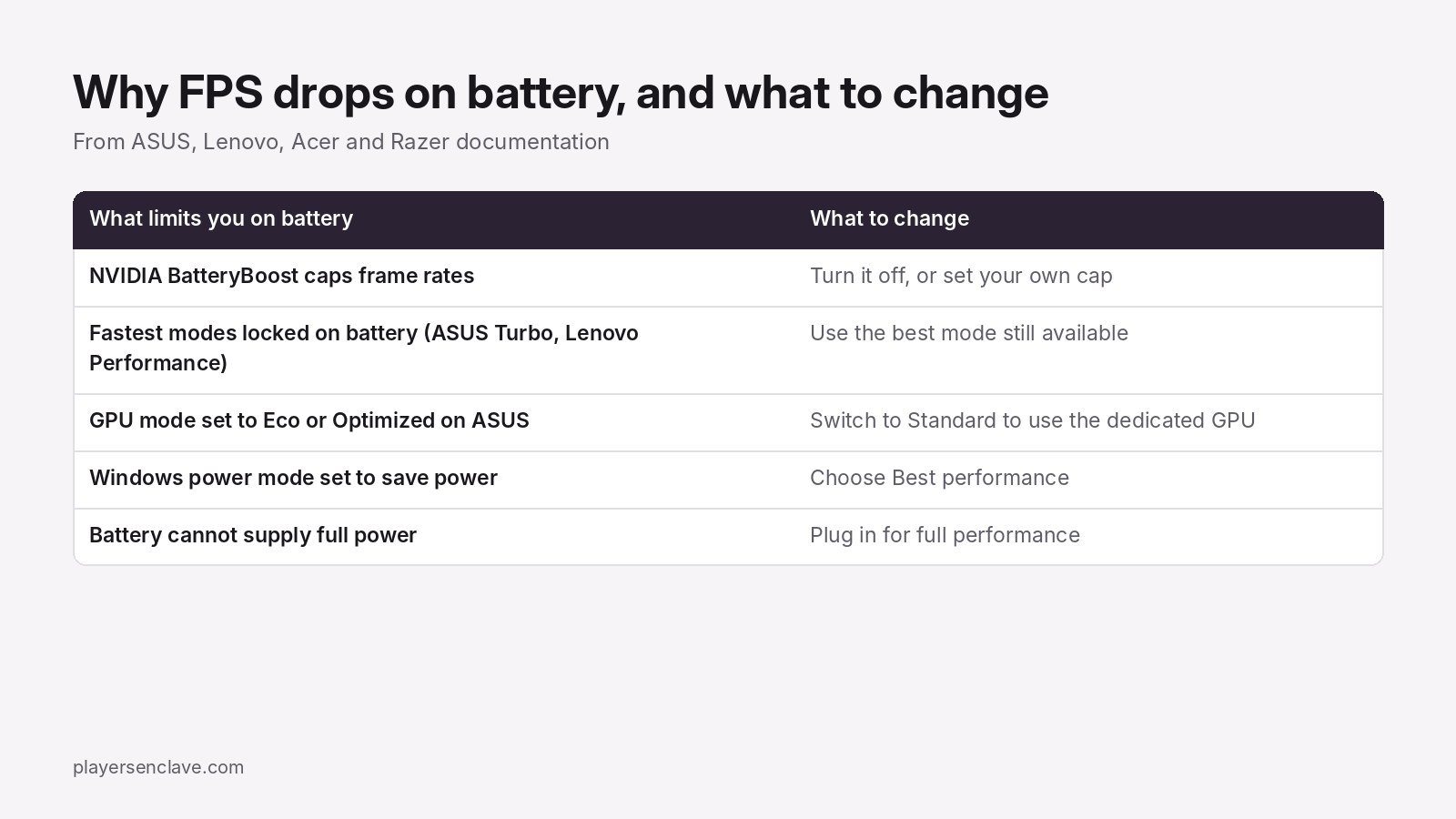
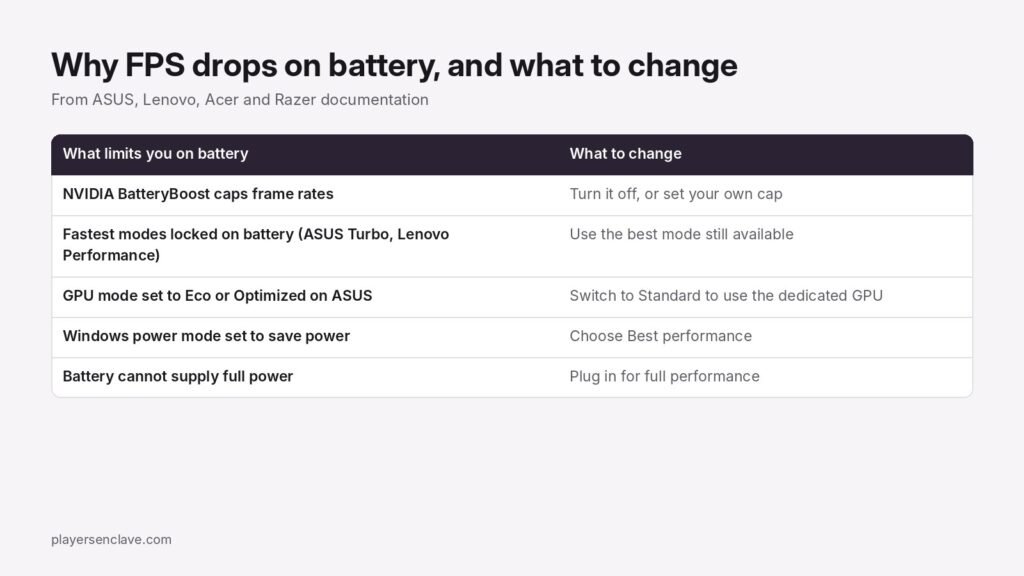
- The fastest modes are locked. ASUS says Turbo mode may be unavailable on battery and needs the full included adapter. Lenovo’s Legion guide says you may not be able to switch to Performance mode on battery. Acer’s Predator manual says mode switching only works with the adapter plugged in.
- BatteryBoost caps frame rates. ASUS’s battery guide says NVIDIA BatteryBoost is on by default on its GeForce laptops when unplugged, and in ASUS’s own test it capped games at 30 FPS while adding about 25% more battery life.
- The dedicated GPU may be switched off. On ASUS laptops, Eco mode disables the dedicated GPU, and Optimized mode switches to Eco automatically on battery, according to ASUS’s MUX guide.
- Some features need wall power. ASUS says NVIDIA Advanced Optimus switches to the direct GPU path only when the laptop is plugged into a wall socket.
Settings to change for more FPS on battery
- Turn off BatteryBoost in NVIDIA’s app, or set your own limit instead. ASUS suggests a cap of around 60 or 90 FPS in NVIDIA Control Panel, under Manage 3D Settings and Max Frame Rate, as a middle ground.
- Turn off Whisper Mode in NVIDIA’s app, which ASUS also lists.
- Use the dedicated GPU. On ASUS, set GPU Mode to Standard rather than Eco. On other brands, check the game uses the high-performance GPU, as our guide to a laptop not using its dedicated GPU explains.
- Pick the fastest mode still available. ASUS recommends Performance rather than Silent. Our guide to gaming laptop performance modes lists each brand’s names.
- Reset the Windows power plan to its defaults, as ASUS suggests, and set the Windows power mode to Best performance, as Razer’s low FPS guide recommends.

The trade-off
Every one of these changes uses more power, so battery life falls. ASUS’s own figures show the scale of the trade: capping at 30 FPS bought about a quarter more playtime in its test. If you play on battery often, ASUS’s suggested cap of 60 or 90 FPS is a middle ground between BatteryBoost and no limit at all. For anything demanding, Razer’s advice applies to every brand: plug in, with the original adapter, for full performance.
Slow even when plugged in?
If frame rates are low with the charger connected, the cause is something else. Check the adapter is the one that came with the laptop, then see our guides to a laptop not using its dedicated GPU and gaming laptop thermal degradation. If the battery drains even while plugged in during games, our battery drain guide explains when that is normal.
Photo by Back2Gaming on Unsplash, used under the Unsplash License. Diagram: PlayersEnclave.