
Quick answer: Restart first. If Armoury Crate still will not open, install the latest ASUS System Control Interface driver and MyASUS from your laptop’s support page, since ASUS lists both as required for Armoury Crate to work fully. If that fails, remove it with ASUS’s Armoury Crate Uninstall Tool, restart, and reinstall from the installer listed for your exact model, with any VPN off and nothing blocking the installer.
Armoury Crate sets the operating mode, fan behaviour and lighting on ROG and TUF laptops, so when it breaks the laptop can run louder, hotter or slower than it should.
Steps checked against ASUS’s Armoury Crate FAQ, its installation SOP for gaming laptops, and its FAQs on the ROG key and the System Control Interface driver, November 2026.
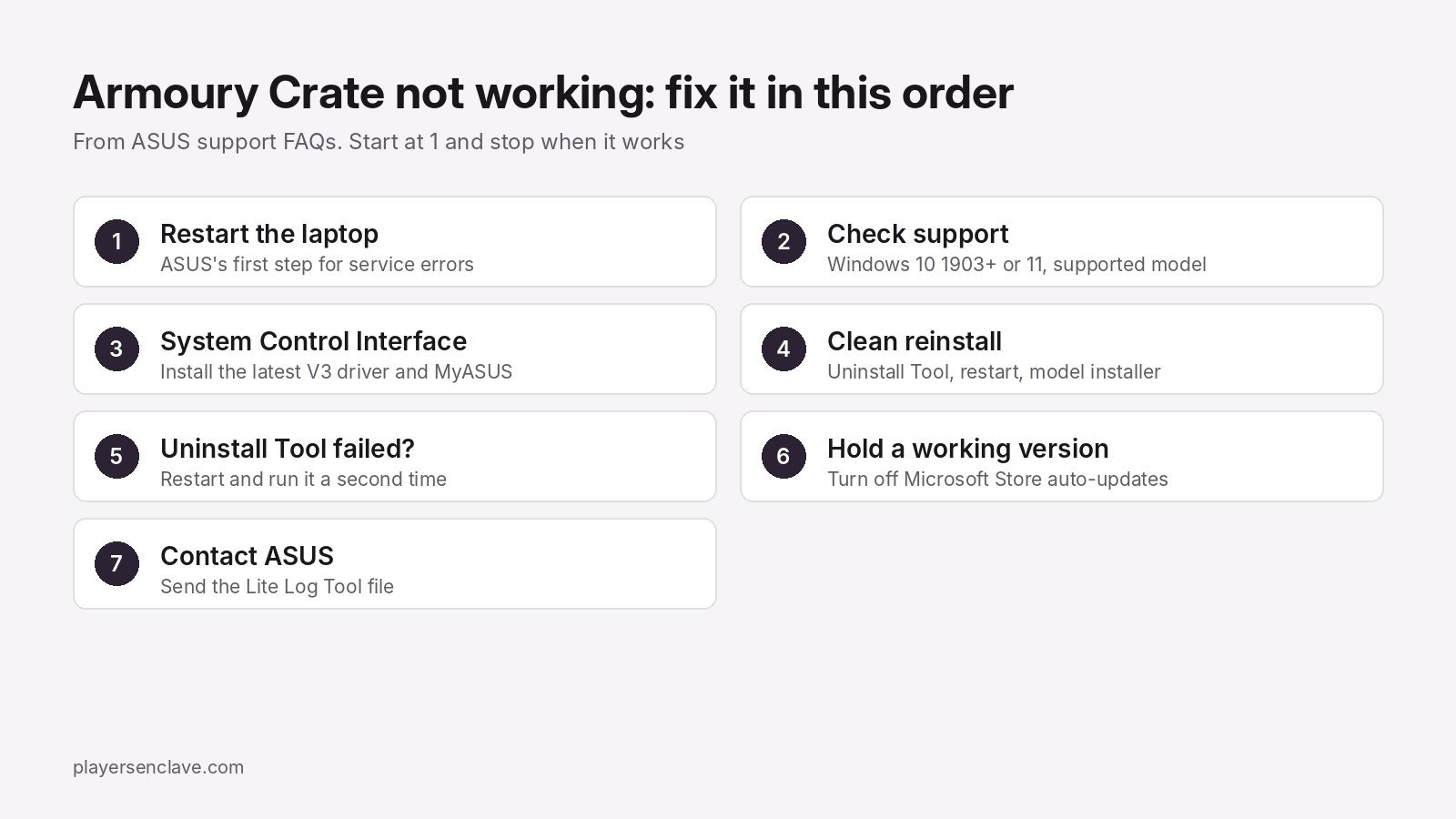
Fix 1: Restart the laptop
Do a full restart rather than waking from sleep. For a service error, the ASUS Armoury Crate FAQ says to restart first and reinstall only if the problem continues.
Fix 2: Check your laptop and Windows are supported
ASUS supports Armoury Crate on Windows 10 from version 1903 onwards and on Windows 11. It comes preinstalled on ROG and TUF gaming laptops. If you have a different ASUS laptop, check ASUS’s Armoury Crate compatible devices list before going further, because an unsupported model will not get the full app.
Fix 3: Install the ASUS System Control Interface driver
ASUS’s FAQ for an ROG key that cannot launch Armoury Crate gives two steps: reinstall the ASUS System Control Interface driver, then install the MyASUS app. Its installation SOP also says to install MyASUS and System Control Interface V2 or V3 so all functions work.
- On your model’s ASUS support page, download the latest ASUS System Control Interface from the Software and Utility category.
- Run ASUSSystemControlInterfaceV3.exe, accept the licence and click Finish, then restart.
- To confirm it installed, right-click Start, open Device Manager, expand System devices, open ASUS System Control Interface and check the version on the Driver tab, as ASUS describes.
- Install the MyASUS app if it is missing, then restart and try Armoury Crate again.
Fix 4: Clean reinstall with the Uninstall Tool
A normal uninstall can leave pieces behind. ASUS provides its own removal tool:
- On the Armoury Crate support page, open Driver & Utility, select Windows 10 64-bit and download the Armoury Crate Uninstall Tool.
- Unzip it, run Armoury Crate Uninstall Tool.exe, then restart.
- From your laptop model’s support page, download ArmouryCrateInstallTool.zip, unzip it and run ArmouryCrateInstaller.exe. Choose Armoury Crate and click Start.
- Before installing, turn off any VPN, make sure antivirus or optimiser software is not blocking Armoury Crate, and do not install inside a virtual platform such as an Android emulator. ASUS lists all three as causes of failed installs.
- Restart when it finishes, then run Windows Update so related drivers are current.
Fix 5: The Uninstall Tool failed
ASUS’s advice is simple: restart and run the Uninstall Tool again, and the second attempt should succeed. If it fails twice, send ASUS support the ACUTLog_ file from the tool’s folder.
Fix 6: Stop it updating itself through the Microsoft Store
Once you have a working version, ASUS’s FAQ shows how to stop Microsoft Store updating it: open the Store, click your profile icon, open App settings and turn off App updates. This applies to every Store app, not only Armoury Crate, so turn it back on once a newer Armoury Crate is confirmed to work on your model.
Fix 7: Collect a log and contact ASUS
If installs keep failing, ASUS asks for a log from its Armoury Crate Lite Log Tool. Run LogToolLite.exe, tick Enable Log, run the installer again to reproduce the problem, click Package Log and wait for Done. Send the LogToolLiteLog_ file to ASUS support with your model and serial number.
Still not working?
If Armoury Crate opens but the laptop still runs hot or slow, check that games use the dedicated GPU with our guide to a laptop not using its dedicated GPU. For how ASUS’s cooling compares, see ASUS ROG vs Lenovo Legion. Owners of other brands can find the same kind of fixes in our guides to MSI Center, NitroSense and OMEN Gaming Hub.
Photo by Back2Gaming on Unsplash, used under the Unsplash License. Diagram: PlayersEnclave.