
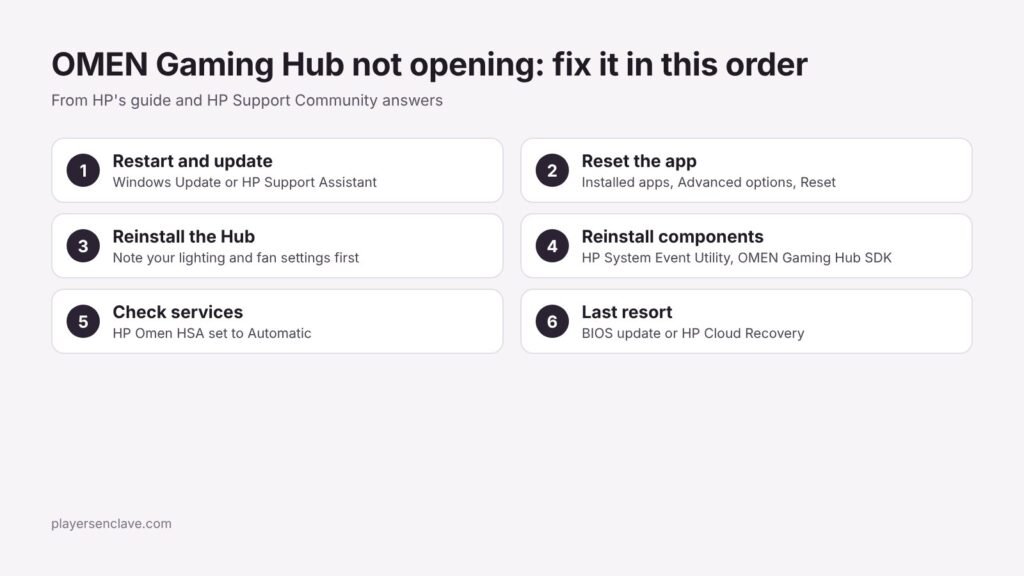
Quick answer: Restart, update OMEN Gaming Hub, and if it still will not open, reset the app or uninstall and reinstall it. If that fails, reinstall the background components it depends on, such as HP System Event Utility and the OMEN Gaming Hub SDK, from your laptop’s HP Software and Drivers page, then reinstall the Hub. If Performance mode is missing on a Victus, your model may simply not have it.
Steps checked against HP’s OMEN Gaming Hub guide and answers in the HP Support Community, November 2026.
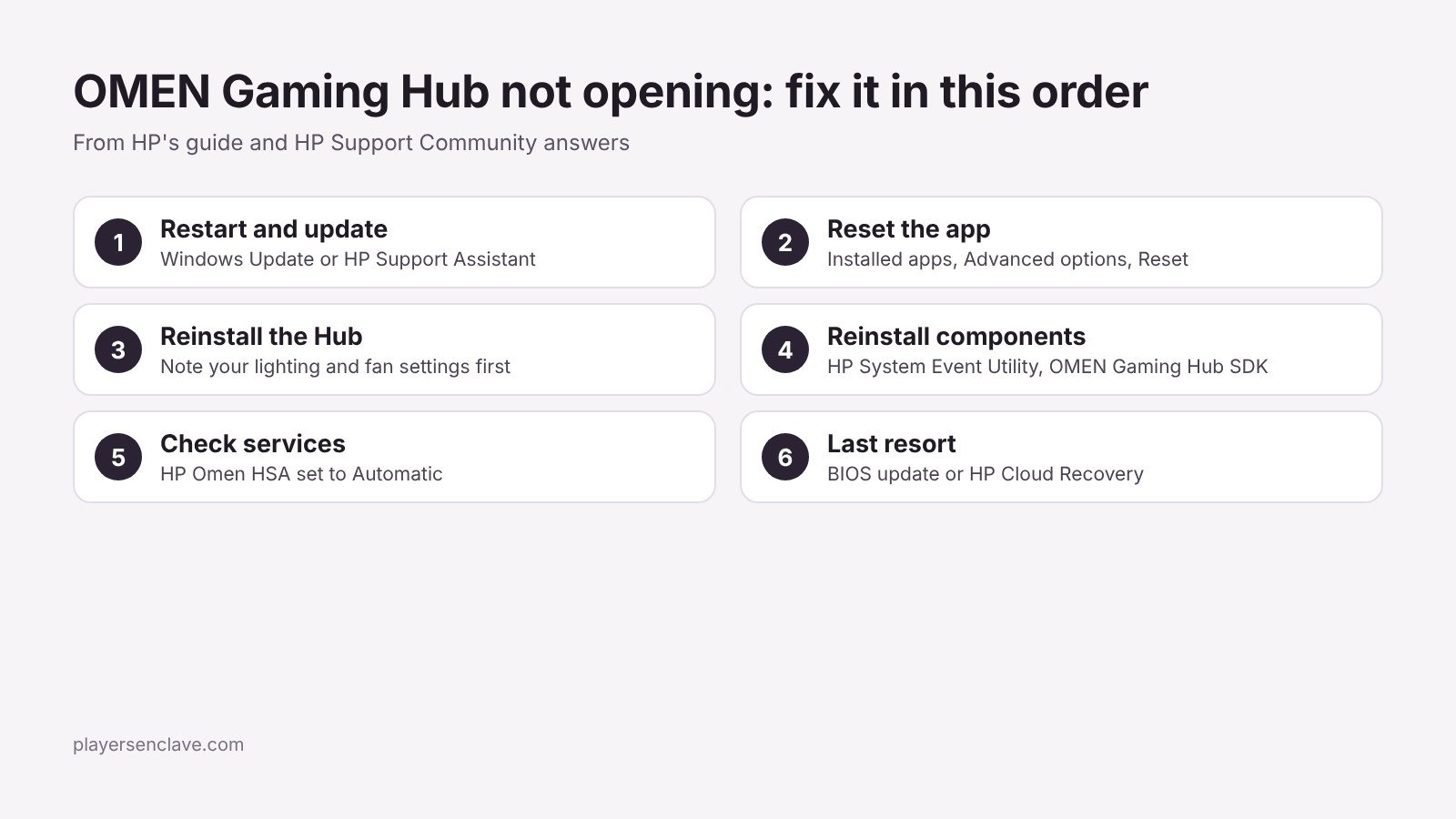
Fix 1: Restart and update the app
Do a full restart, then check for updates. HP’s OMEN Gaming Hub guide says to update the Hub through Windows Update or HP Support Assistant, and to keep Windows, GPU drivers and the BIOS current as well. Install any pending updates, restart again and try the app.
Fix 2: Reset the app
HP’s guide recommends resetting the app to its default settings and clearing its data when it misbehaves. In Windows, open Settings > Apps > Installed apps, find OMEN Gaming Hub, open its Advanced options and click Reset. This clears saved data but keeps the app installed.
Fix 3: Uninstall and reinstall OMEN Gaming Hub
- Note your lighting, fan and power settings first. HP warns that uninstalling resets custom power profiles, lighting and thermal settings.
- Go to Settings > Apps > Installed apps, select OMEN Gaming Hub, choose Uninstall, then restart.
- Reinstall OMEN Gaming Hub from the Microsoft Store or HP’s site, then restart once more.
Fix 4: Reinstall the components the Hub depends on
OMEN Gaming Hub relies on separate HP packages, and a broken one can stop it from opening even after a reinstall. In HP Support Community threads, experienced helpers recommend this order:
- Uninstall OMEN Gaming Hub and HP System Event Utility, then restart.
- From your laptop’s page on HP’s Software and Drivers site, reinstall HP System Event Utility and the OMEN Gaming Hub SDK package, which provides the SDKs for features such as overclocking and Network Booster.
- Reinstall OMEN Gaming Hub, run Windows Update, and restart.
These steps come from community answers in threads about an OMEN 15 laptop where the Hub would not open and an OMEN 30L desktop where it would not reinstall. Neither thread confirmed which step finally worked, so treat them as the next things to try rather than a guaranteed fix.
Fix 5: Check the OMEN background service
In the same OMEN 15 thread, a helper suggested confirming that the HP Omen HSA service is running. Press Win + R, type services.msc, find it in the list, set its startup type to Automatic and start it. Service names can change between versions, so look for any OMEN or HP service that is stopped or disabled.
Performance mode is missing
HP’s guide lists Balanced, Performance and ECO power profiles, but not every model has all three. In a thread about a Victus 15, an HP employee explained that some Victus models do not include a dedicated Performance mode in OMEN Gaming Hub. The suggested alternatives were:
- Choose a high-performance power plan in Windows’ additional power settings.
- Set power management to prefer maximum performance in the NVIDIA Control Panel.
- Look for an HP performance controls app or thermal options in the BIOS.
If games feel slow, also confirm they run on the dedicated GPU with our guide to a laptop not using its dedicated GPU.
Last resort: BIOS update or HP Cloud Recovery
If nothing above works, install the latest BIOS for your exact model from HP’s driver page. If Windows was reinstalled from a plain Microsoft image, the accepted answer in the OMEN 15 thread recommends HP’s Cloud Recovery Tool instead, which restores HP’s factory image and partitions using a 32GB USB drive.
Safety note: keep the charger connected during a BIOS update and do not interrupt it. A factory recovery erases the drive, so back up your files first.
Owners of other brands can find the same kinds of fixes in our guides to MSI Center, NitroSense and Gigabyte Control Center.
Diagram: PlayersEnclave.