
Most gaming laptops feel current for 3 to 5 years of regular play before a new GPU generation makes upgrading worth it. The hardware itself, if you take care of it, will often keep running for 6 to 8 years or longer. The two numbers are different because gaming laptops rarely die of old age. They get retired because the GPU can no longer hit playable frame rates in new releases, not because a component failed. That gap is exactly where good maintenance pays off: it won’t stop a laptop from aging out of new games, but it can be the difference between a laptop that’s merely slower and one that’s also thermal-throttling, battery-swollen, or dust-choked on top of it.
What Actually Ends a Gaming Laptop’s Useful Life
Three things typically end a gaming laptop’s run, in order of how often they’re the actual cause:
- The GPU falls behind. This is the most common reason and has nothing to do with wear. A laptop bought with a mid-range GPU will typically still run older titles fine after 5 years, but will struggle with new AAA releases at anything above low settings well before the hardware itself is in any danger of failing.
- Heat damage accumulates. Dust-clogged vents and dried-out thermal paste force the CPU and GPU to run hotter for the same performance, which shortens the life of the fans, the battery, and the solder joints under the chips.
- The battery degrades. Lithium-ion cells lose capacity through charge cycles, and a laptop that’s charged to 100% and left plugged in around the clock (common for gaming laptops, since most gaming happens tethered to a wall outlet) degrades faster than one that isn’t.
The 8 practices below target all three.
1. Start With a Laptop That Cools Itself Well
This is the one tip that only applies before you buy, but it matters more than anything on this list: a laptop with an undersized cooling system will run hot no matter how well you maintain it. Look at independent thermal reviews, not marketing copy, before buying, and favor models with vapor chamber cooling or multiple heat pipes over the cheapest option in a given spec tier.
2. Keep the Vents Clear and Clean Them on a Schedule
Always use the laptop on a hard, flat surface. Beds, couches, and laps block intake vents and are the single most common cause of avoidable overheating. Leave a few inches of clearance around the vents wherever the laptop sits.
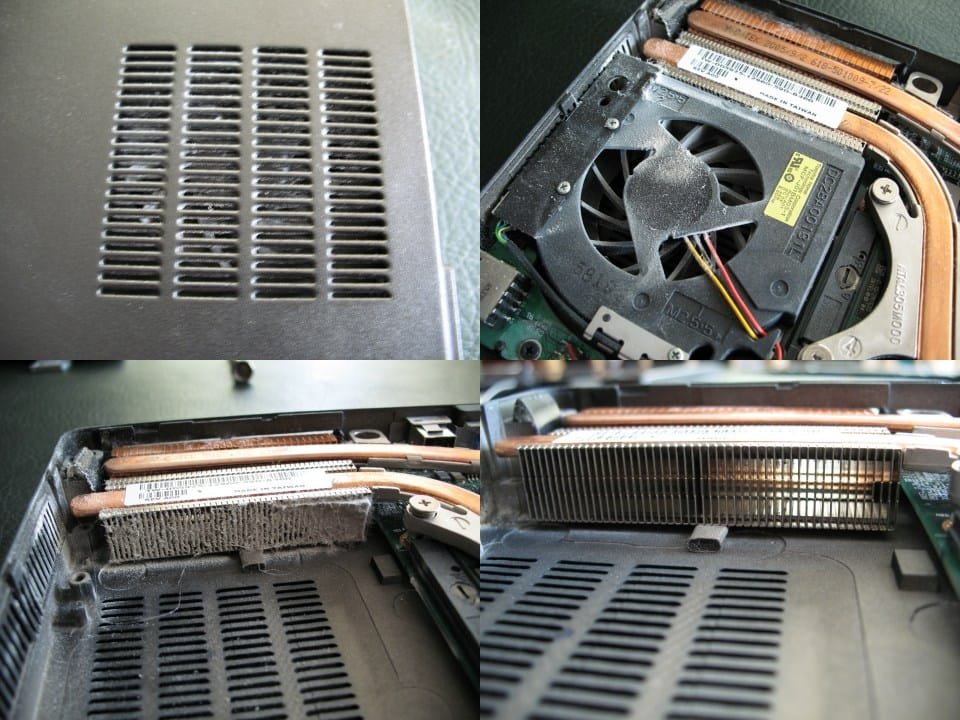
Every 3 to 6 months, power the laptop off and clear the vents with short bursts of compressed air. Brace the fan blades with a toothpick or similar first; spinning an unpowered fan too fast with compressed air can generate a small reverse current that, in rare cases, damages the motherboard. A cooling pad underneath adds meaningful extra airflow if you game for long stretches.
3. Manage How You Charge It
If your laptop spends most of its life plugged in at a desk, look for a battery health or charge-limiting mode in the manufacturer’s software (ASUS calls it Battery Health Charging, Lenovo calls it Battery Conservation Mode, and most other brands have an equivalent). These cap the charge around 60 to 80% instead of topping off to 100% and holding it there, which meaningfully slows how fast the battery loses capacity. If you don’t have access to that setting, unplugging occasionally and letting the charge drop below 100% has a similar, smaller effect.
4. Clean More Than Just the Vents
Dust and debris between the keys can jam switches over time, and it accumulates faster than most people expect on a laptop that lives on a desk. Use compressed air or a soft brush between the keys, and a lint-free cloth lightly dampened (never soaked) for the case and screen. Skip glass cleaners and alcohol wipes on the display; they can damage the anti-glare coating that most gaming panels use.
5. Handle and Transport It Carefully
Gaming laptops are heavier and less pocket-friendly than ultrabooks, which makes it easy to get careless with them. Use a padded sleeve or backpack compartment for transport, avoid carrying it by the screen lid, and unplug the charger by the connector rather than yanking the cable, since a bent charging port is one of the more common (and more expensive) laptop repairs.
6. Keep Drivers and Firmware Updated
GPU drivers in particular get regular updates that improve performance and fix stability issues in new game releases. Outdated drivers are also a common, overlooked cause of unnecessary crashes and thermal spikes, since an inefficient driver can make the GPU work harder than it needs to for the same result.
7. Upgrade What You Can Before Replacing the Whole Laptop
Most gaming laptops let you add RAM or swap the storage drive even when the GPU and CPU are soldered in and off-limits. If a laptop is feeling slow primarily because of stutter and load times rather than low frame rates, more RAM or a faster SSD is a far cheaper fix than a new laptop, and can add a year or two of comfortable use.
8. Know When to Actually Replace It
Maintenance extends a laptop’s life, but it doesn’t make a 5-year-old GPU new again. It’s usually time to replace rather than repair when two or more of these are true at once: the GPU can’t meet the minimum requirements of current releases, the battery holds a fraction of its original capacity even after a full recalibration, and the laptop throttles under load despite clean vents and fresh thermal paste. One of these alone is often fixable; all three together usually means the laptop has reached the end of its useful run.
If you’re weighing whether a desktop gaming PC would hold its value differently, we’ve covered that comparison in a separate look at gaming PC lifespans.