
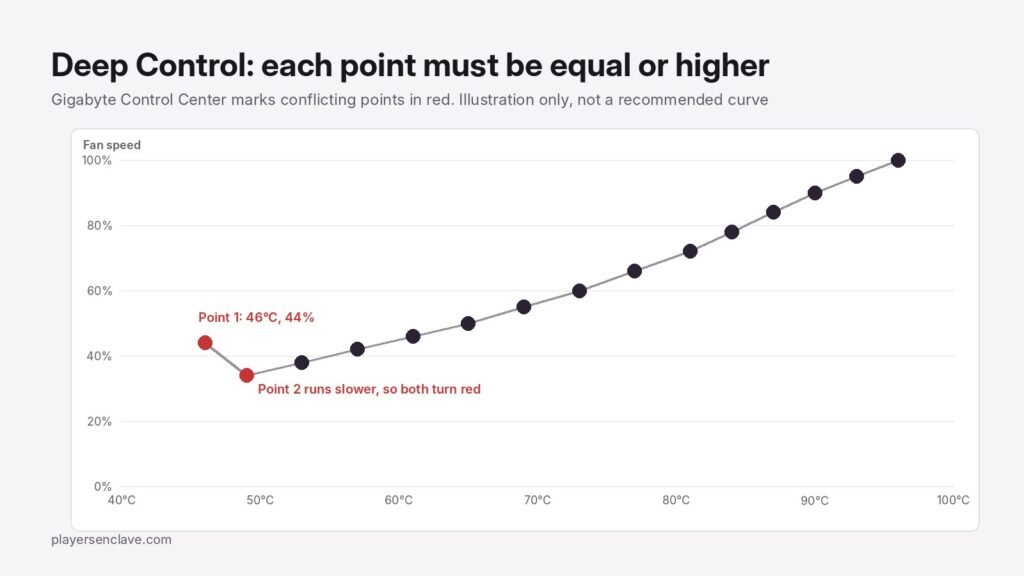
Quick answer: Gigabyte Control Center keeps its fan modes under Device Setting. Normal is the everyday default, Gaming runs the CPU and GPU at higher performance, Quiet keeps the fans down for videos and music, Customize holds the fan at a fixed or maximum speed, and Deep Control lets you draw your own fan curve with 15 points. The names change between laptop generations, so match the tables below to what your app shows.
Mode names and steps checked against Gigabyte’s laptop Control Center guides, its G5 quick start guide, its laptop GPU technology page and its overheating FAQ, November 2026.
Where are the fan modes in Control Center?
Open Gigabyte Control Center and go to Device Setting, one of the six functions in the main window according to Gigabyte’s laptop Control Center guide. The fan profiles and Deep Control both sit there. On older G-series laptops such as the G5, Gigabyte’s quick start guide lists Fn + Esc to open Control Center and Fn + ! to switch the fan between automatic control and full power.
What each fan mode does
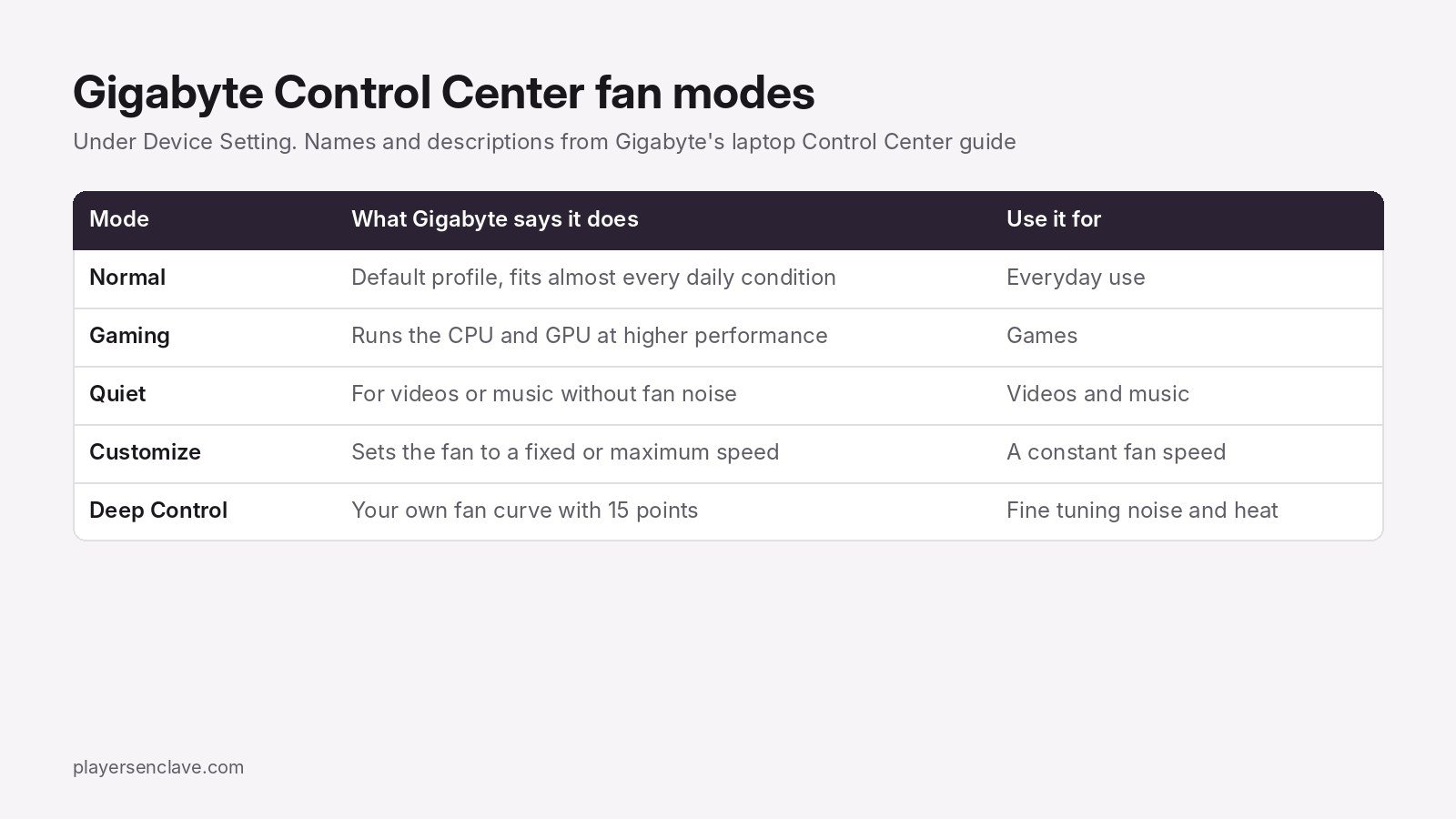
- Normal: the default profile. Gigabyte describes it as one that fits almost every daily condition.
- Gaming: sets the processor and graphics to run at higher performance, for games.
- Quiet: meant for watching videos or listening to music when you do not want to hear the fans.
- Customize: sets the fan to a fixed speed or to maximum speed. A fixed speed does not rise with temperature, so a low setting is a poor choice for long gaming sessions.
- Deep Control: Gigabyte’s option for when none of the other profiles suits you. You set the fan speed for each temperature yourself.
Why your laptop shows different mode names
Gigabyte has changed the wording across versions of the app, so the modes above may not match your screen exactly:
| Gigabyte document | Fan or power options listed |
|---|---|
| Laptop Control Center guide, v1.1 | Normal, Gaming, Quiet, Customize, Deep Control |
| Control Center guide, v1.2 (December 2021) | Fan Mode: Deep Control, Silent, General, Game. Custom Control: Automatic or Fixed |
| G5 quick start guide | Power modes: Quiet, Performance, Entertainment, Power Saving, plus a fan speed setting |
If your app shows Silent, General and Game, you have the layout in Gigabyte’s v1.2 guide, where those fan modes sit next to a Custom Control setting of Automatic or Fixed.
Gaming mode vs Turbo mode
Some Gigabyte laptops also have power modes, and Turbo is the one that changes the fans. On its 12th Gen Intel models, Gigabyte’s laptop GPU technology page lists Gaming mode as maximum system power with Nvidia Dynamic Boost 2.0, and Turbo mode as the same power with the CPU and GPU at their highest frequency and the fans at full speed. On its RTX 30-series laptops, Turbo adds 10W to the GPU’s power over Maximum mode. Because Turbo runs the fans at full speed, keep it for times when noise does not matter.
Newer AORUS AI laptops add AI Boost. Gigabyte’s AORUS blog says it switches to Gaming Mode automatically when a supported game launches.
How to build a Deep Control fan curve
- Open Device Setting and choose Deep Control.
- Drag each of the 15 points to the fan speed you want at that temperature.
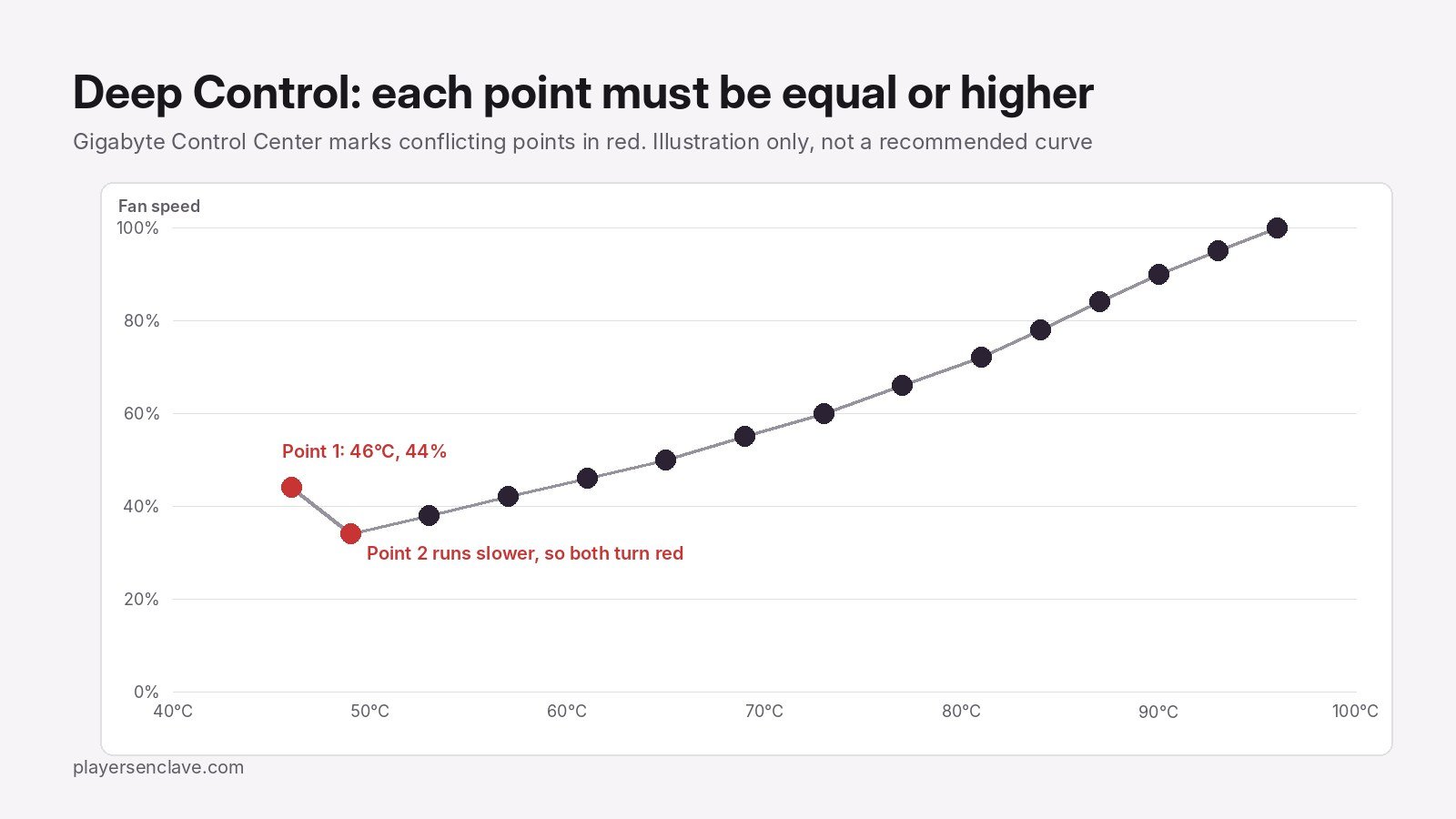
- Keep every point’s temperature and fan speed equal to or higher than the point before it. Points that break this rule turn red.
- Click Apply under the list on the right to save the curve.
Gigabyte’s own example: if point 1 is set to 46°C and 44% and point 2 runs slower, both turn red. Lower point 1’s fan speed below point 2’s and the conflict clears.
Which fan mode should you use?
- Browsing, office work, study: Normal.
- Videos and music: Quiet.
- Games: Gaming, or Turbo if your laptop has it and the noise does not bother you.
- You want control over noise: Deep Control, with a curve that still reaches high fan speeds at high temperatures.
High temperatures alone are not a fault. Gigabyte’s overheating FAQ says Intel CPUs can run up to 100°C and Nvidia GPUs up to 87 to 95°C within specification. For what years of heat do to a laptop, see our guide to gaming laptop thermal degradation.
Fan modes missing or not applying?
If Device Setting has no fan section, or your curve does not stick, work through our Gigabyte Control Center not working fixes, which cover clean reinstalls, conflicting software and BIOS updates. If the fans themselves have failed, our Gigabyte laptop warranty guide explains how to claim. Still choosing a laptop? See is Gigabyte a good laptop brand and our guide to laptops with the best cooling systems.
Diagrams: PlayersEnclave.