
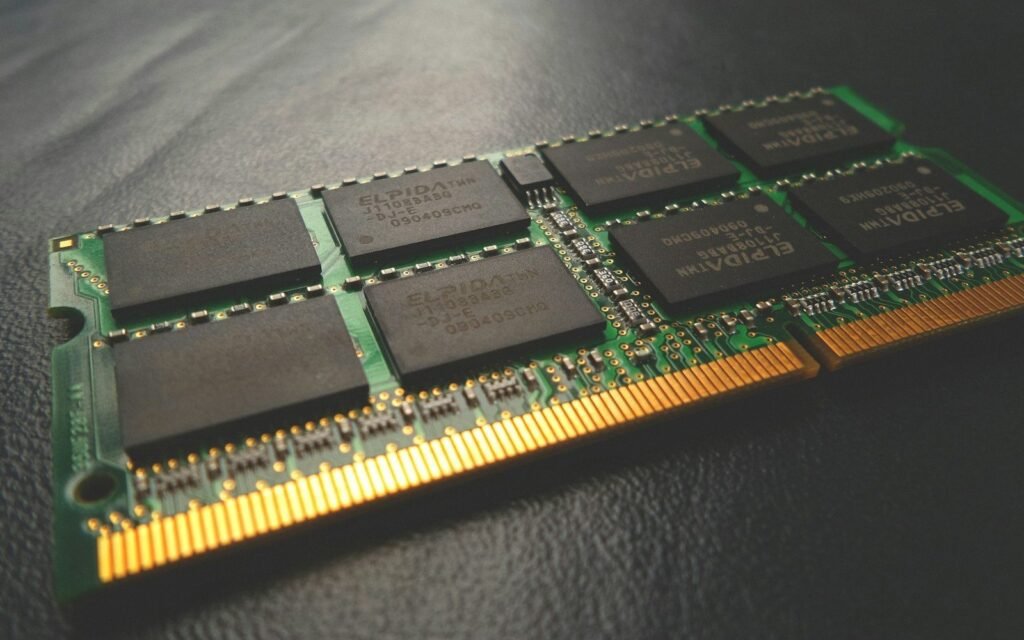
Quick answer: Open Task Manager, go to Performance and then Memory, and read the “Slots used” figure. Then look up your exact model’s spec sheet: if it lists SO-DIMM slots or an LPCAMM2 module, the RAM can be upgraded; if it says soldered or onboard memory, it cannot. For storage, the spec sheet tells you how many M.2 slots there are and what length and PCIe generation they take. Check your brand’s warranty terms before opening the laptop.
Players Enclave may earn a commission when you buy through links on this page. As an Amazon Associate we earn from qualifying purchases.
Checked against Lenovo’s PSREF spec sheets, MSI, Acer and Gigabyte warranty terms, Razer’s Blade specifications, and reporting from PCWorld, Tom’s Hardware and Windows Central, November 2026.
Step 1: Check the slot count in Task Manager
As Windows Central explains, press Ctrl + Shift + Esc, open the Performance tab, click Memory, and look for the slots figure in the bottom right. “2 of 2” means both slots are filled. Treat this as a starting point rather than proof: confirm the memory type on the spec sheet before you buy anything.
Step 2: Read your model’s spec sheet
Find the exact model number on the sticker underneath the laptop or on the manufacturer’s support page, then read the memory and storage sections. Lenovo’s spec sheet for the Legion Pro 7 Gen 10 is a good example of what to look for: up to 64GB of DDR5-6400 across two SO-DIMM slots, and two M.2 2280 slots, one PCIe 5.0 and one PCIe 4.0.
What the memory wording means
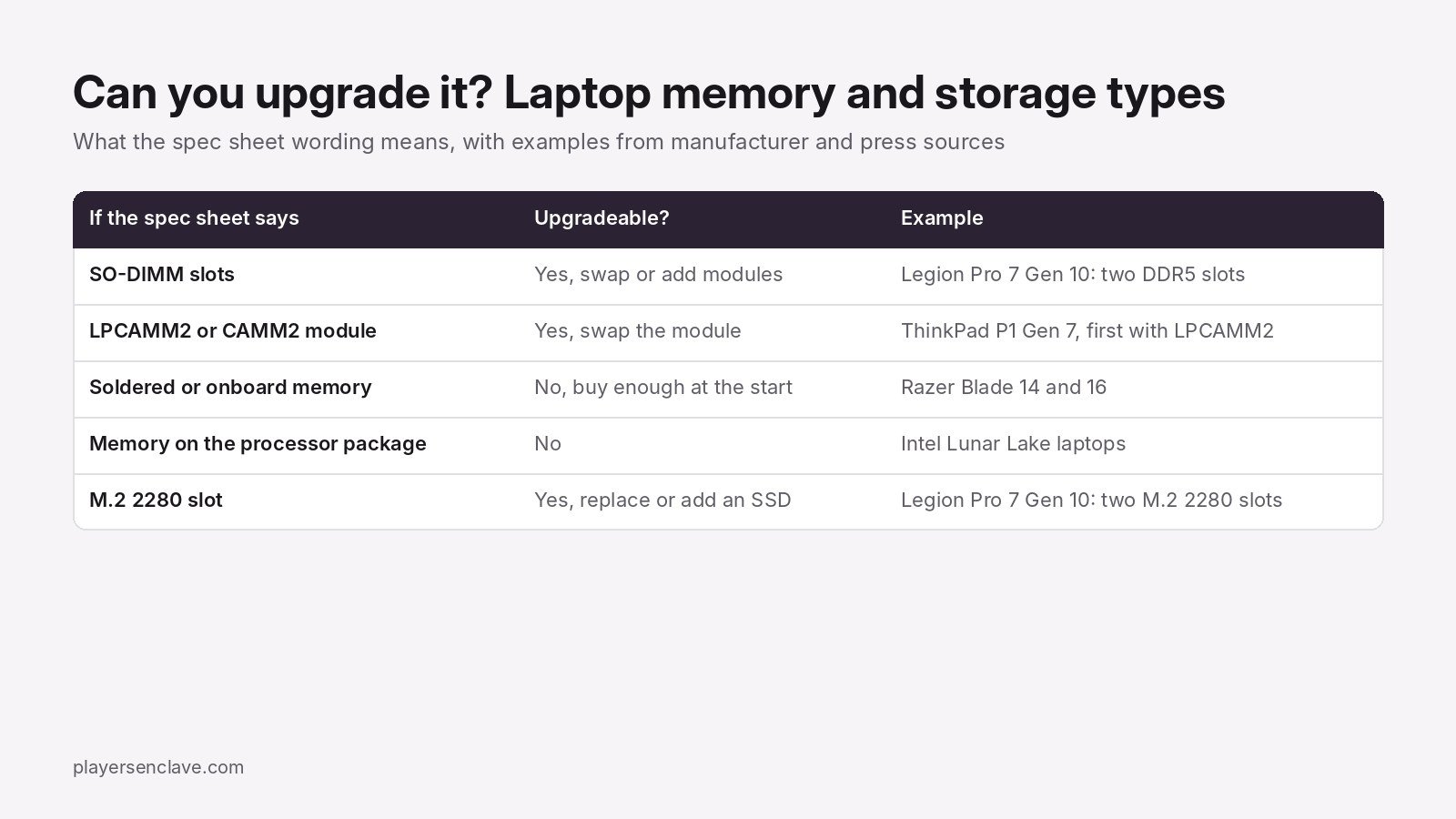
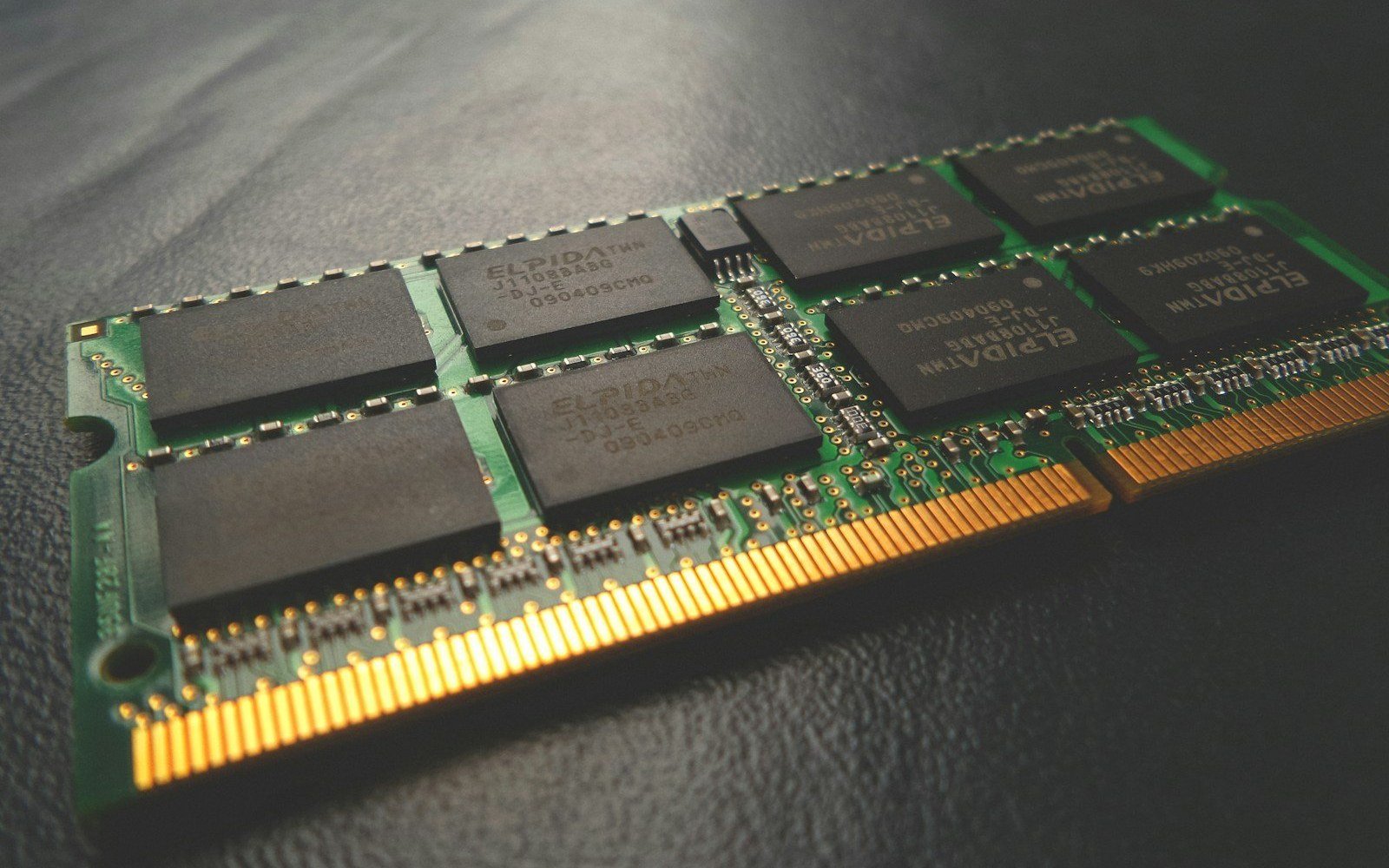
- SO-DIMM slots: removable modules. You can add a second module or swap both for larger ones, up to the maximum on the spec sheet.
- LPCAMM2: low-power memory on a removable module. Tom’s Hardware reported that Lenovo’s ThinkPad P1 Gen 7 was the first laptop to use it, and that the module can be swapped for a larger one.
- Soldered memory: fixed to the motherboard. Razer’s Blade 14 and 16, for example, have soldered memory, and only the Blade 18 has upgradeable slots, as we cover in our Razer brand guide.
- Memory on the processor package: Intel’s Lunar Lake chips place the RAM inside the processor package, so, as PCWorld explains, it cannot be upgraded after purchase.
Step 3: Check the storage slots
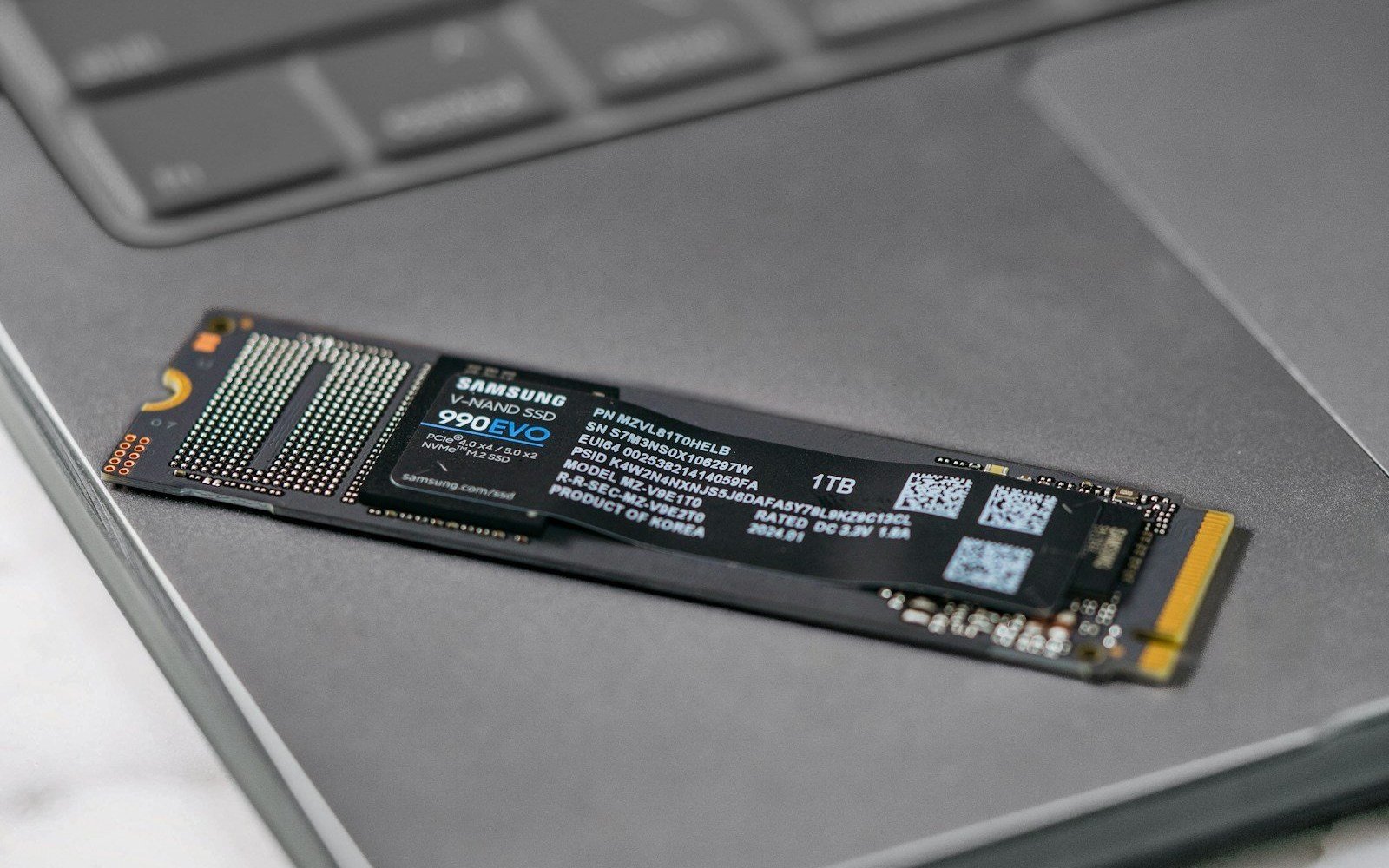
Gaming laptops such as the Legion Pro 7 take M.2 SSDs. The spec sheet gives three things to match: the number of slots, the supported length, such as 2280, and the PCIe generation of each slot. A drive of a different length may not fit the mounting point, so match the length exactly. If both slots are full, upgrading means replacing a drive and moving your data.
Step 4: Check the warranty before you open it
| Brand | What its warranty terms say about upgrades |
|---|---|
| MSI | RAM and storage upgrades do not void the warranty, but damage caused by the upgrade is not covered |
| Acer | Components not included at purchase, and damage from non-Acer parts, are excluded |
| Gigabyte | Parts not on Gigabyte’s approved list are excluded, and a missing serial sticker voids cover |
| Dell Alienware | Dell publishes its own memory upgrade guide for the Alienware 16 and 18 Area-51 |
Whatever the brand, keep the original parts so you can refit them before sending the laptop in, and leave every sticker intact. Our guides to the MSI, Acer and Gigabyte warranties have the details.
How much should you add?
For RAM, see is 32GB of RAM enough for gaming, and for storage, is a 500GB SSD enough for gaming. Once you know your slot type, length and generation, you can compare DDR5 SO-DIMM laptop memory on Amazon and M.2 2280 NVMe SSDs on Amazon. Buy the type your spec sheet names, not just the capacity.
SSD photo by Samsung Memory and RAM photo by Franck V. on Unsplash, used under the Unsplash License. Diagram: PlayersEnclave.