
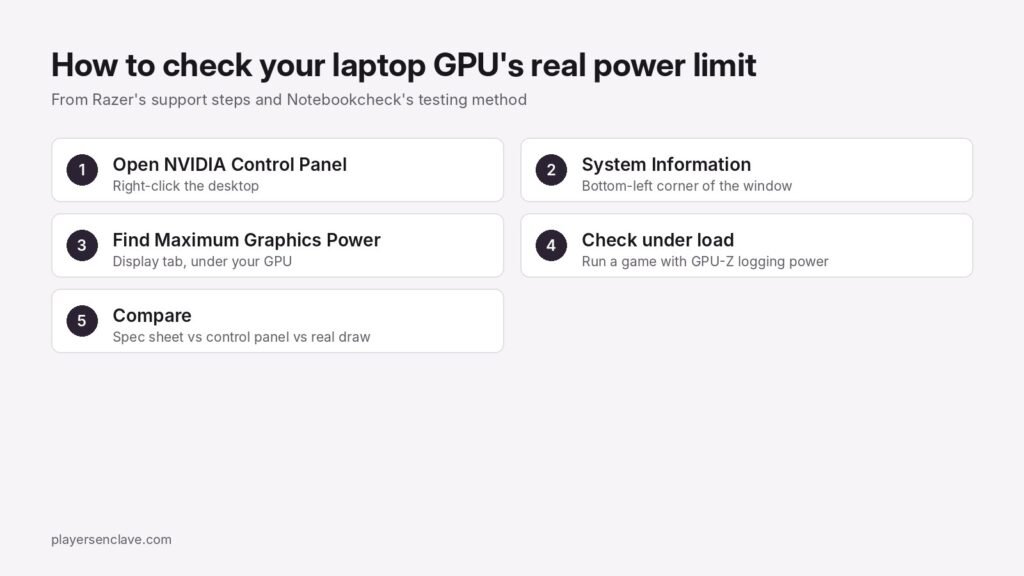
Quick answer: Right-click the desktop, open NVIDIA Control Panel, click System Information in the bottom-left corner and look for Maximum Graphics Power on the Display tab. That is the laptop’s listed GPU power target, or TGP. Treat it as a ceiling, not a promise: Notebookcheck found laptops that never reached the figure shown, so confirm it by logging GPU power with a tool such as GPU-Z while a game runs.
Checked against Razer’s support guide, Notebookcheck’s TGP investigation, Tom’s Hardware’s reporting on laptop GPU variants, Gigabyte’s laptop GPU technology page and MSI’s 2026 laptop specifications, November 2026.
Why TGP matters
A laptop GPU’s name does not tell you how fast it is. Tom’s Hardware reported on one count of 28 different RTX 30-series laptop variants across just three GPU names, differing in power, clock speeds and memory speeds. The same is true today: MSI lists the RTX 5070 in its Cyborg 15 Max at up to 100W, while its Katana 15 HX runs what MSI calls a full-power RTX 5070, as covered in our MSI lineup guide. Power makes a measurable difference: Tom’s Hardware found lower-power Max-Q versions less powerful than full-power models in its testing.
How to check it in NVIDIA Control Panel
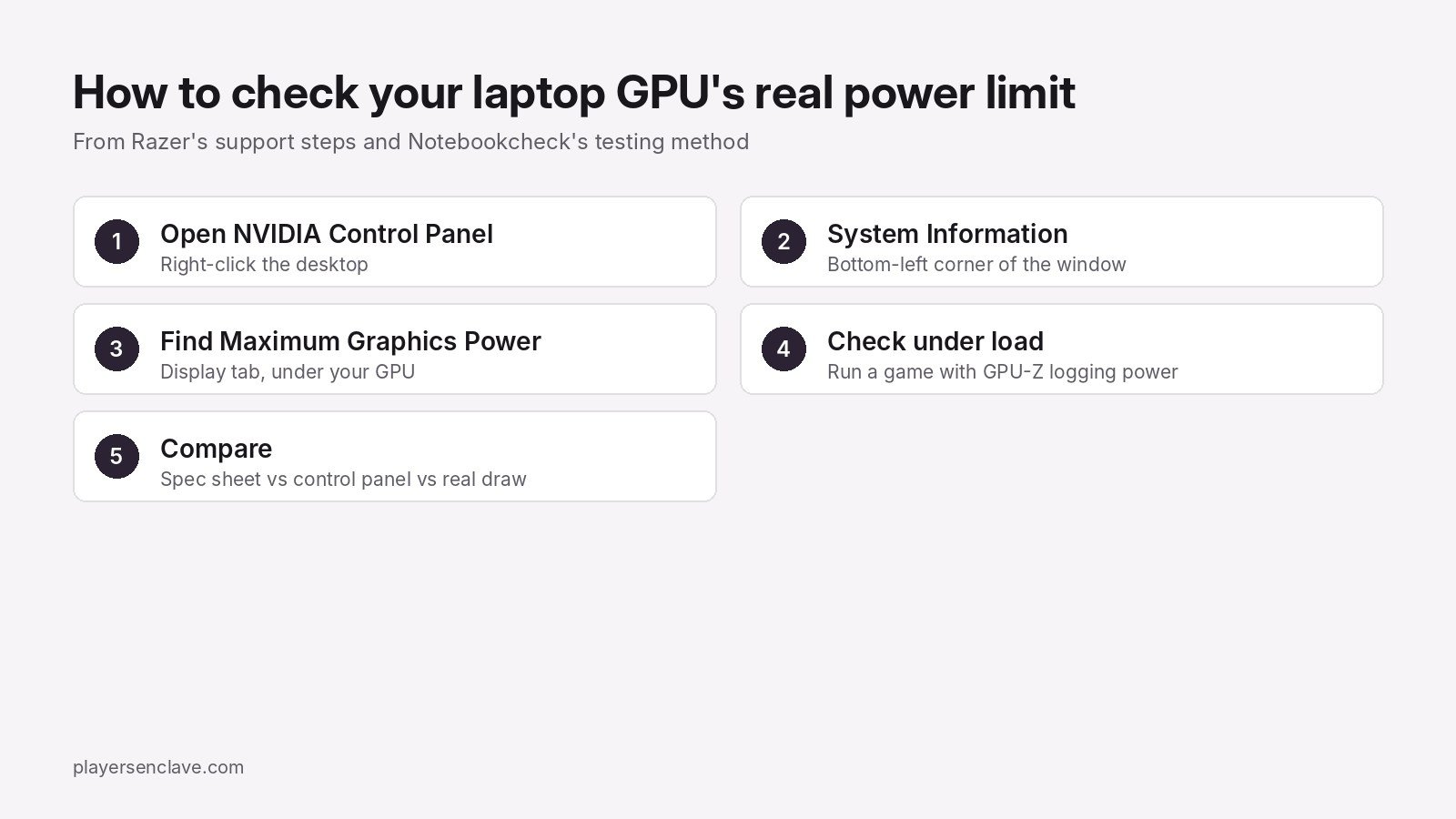
- Right-click the desktop and select NVIDIA Control Panel.
- Click System Information in the bottom-left corner.
- On the Display tab, find Maximum Graphics Power.
These are the steps in Razer’s support guide.
Why the listed figure can be wrong
Notebookcheck’s investigation found clear gaps on some laptops:
| Laptop | Control Panel showed | Notebookcheck measured |
|---|---|---|
| Maingear Vector Pro | 165W | Never above 130W |
| ADATA XPG Xenia 15 | 145W | About 125W, which the maker later confirmed as the real target |
| Alienware x15 R1 | 110W | 108W |
Notebookcheck put the gaps down mainly to cooling and chassis limits: a thin laptop may simply not be able to remove the heat the full figure would produce. Plenty of laptops, like the Alienware above, do get close to their target.
How to confirm the real figure
- Plug in the charger and choose your brand’s fastest performance mode. Our guide to performance modes lists each brand’s names.
- Open GPU-Z, the tool Notebookcheck used, and record the GPU’s power draw.
- Play a demanding game for several minutes and note the sustained power figure, not the brief peak.
Modes change the result. Gigabyte, for example, lists its RTX 30-series laptops with Turbo mode adding 10W to the GPU’s power over Maximum mode, and says NVIDIA Dynamic Boost 2.0 shifts power between the GPU, its memory and the CPU frame by frame. A low reading on battery is expected, as our guide to FPS drops on battery explains.
Checking before you buy
Look for the GPU wattage on the spec sheet or the manufacturer’s announcement. MSI, for instance, lists combined CPU and GPU power for its 2026 models, from 170W on the Katana 15 HX to 300W on the Raider 16 Max. If a listing gives only the GPU name, ask the seller or check an independent review that measured power. Then make sure the dedicated GPU is actually in use, as our guides to a laptop not using its dedicated GPU and the MUX switch explain.
Photo by Karola G (Kaboompics) on Pexels, free to use under the Pexels License. Diagram: PlayersEnclave.