
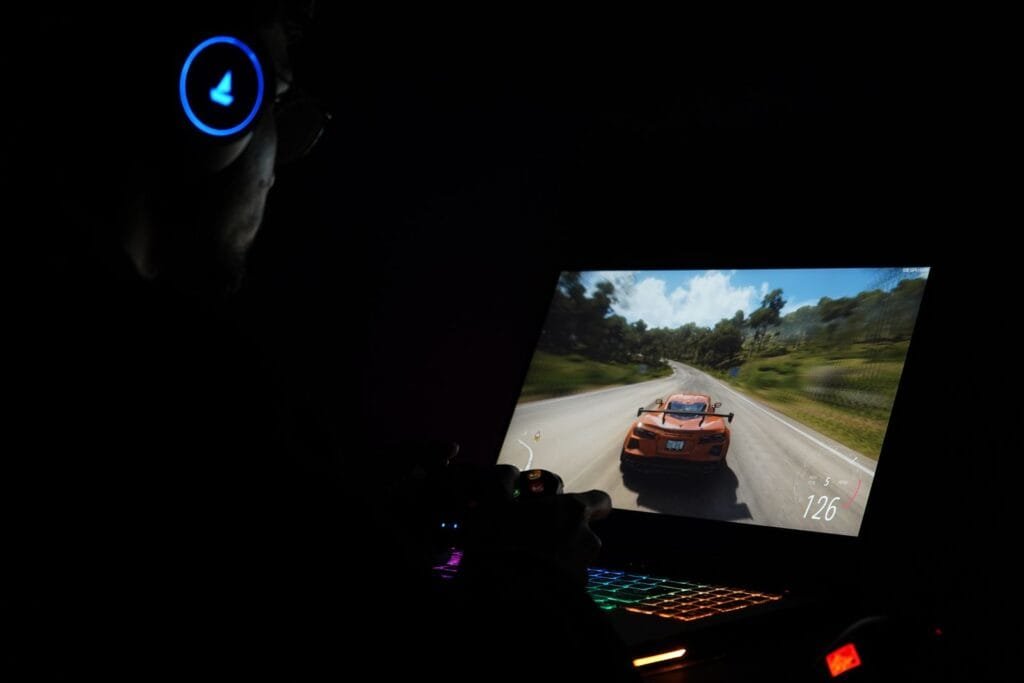
Quick answer: Plug the laptop in, make sure your brand’s control app is not in an eco or integrated-only GPU mode, then set the game to High performance in Windows graphics settings or to High-performance NVIDIA processor in the NVIDIA Control Panel. Restart the game after changing either setting. If the dedicated GPU does not appear in Device Manager at all, reinstall its driver.
Steps checked against NVIDIA’s Control Panel reference, AMD’s switchable graphics guidance, Acer’s and ASUS’s support articles, October 2026.
Is your laptop really ignoring the dedicated GPU?
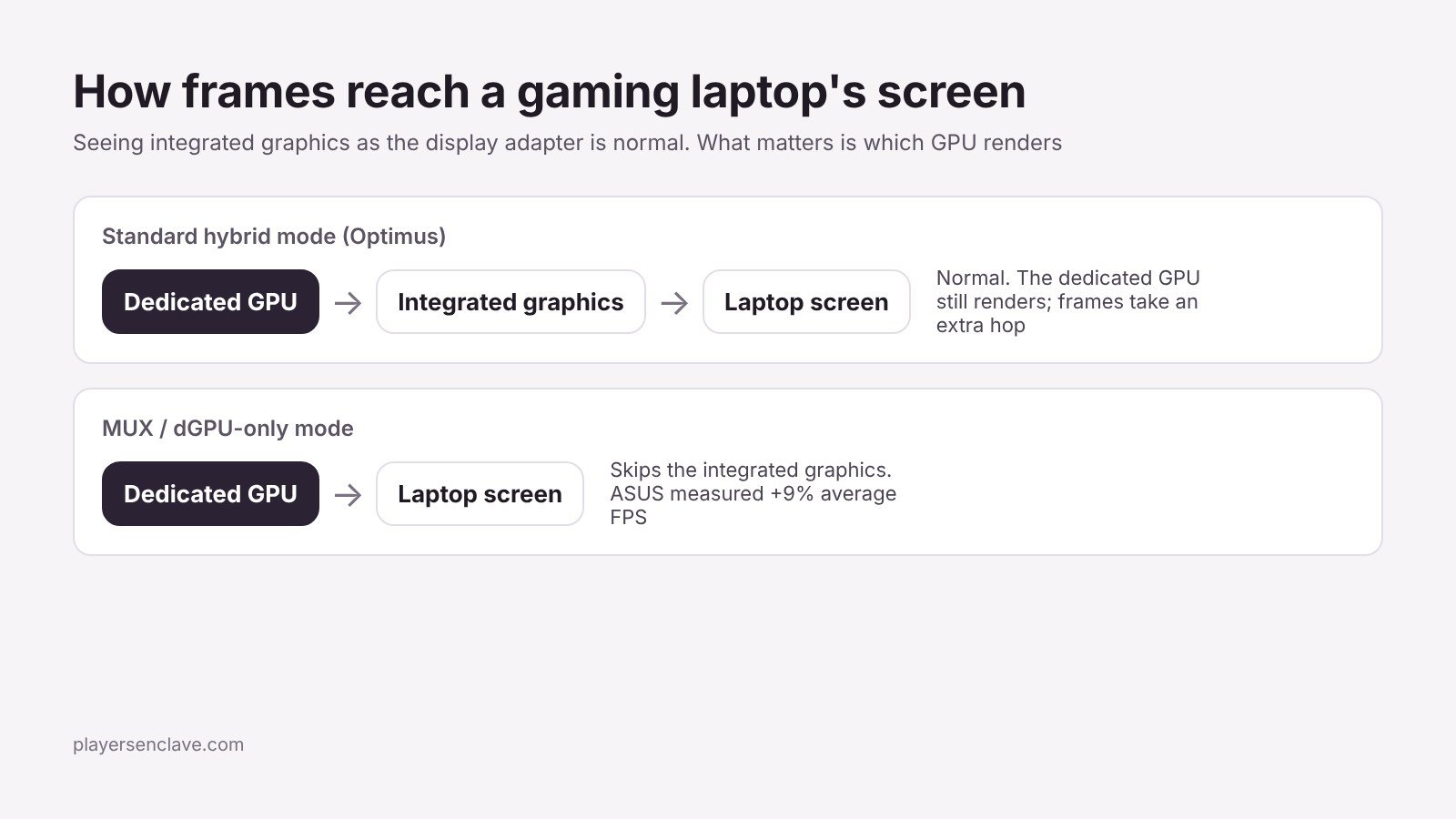
Most gaming laptops have two graphics processors: the integrated graphics inside the CPU and a dedicated NVIDIA or AMD chip. On standard hybrid designs, the dedicated GPU renders each frame and passes it through the integrated graphics to the screen, as ASUS explains in its MUX switch guide. So seeing the integrated graphics listed as your display adapter is normal. What matters is which GPU does the rendering.
To check, open Task Manager with Ctrl + Shift + Esc while the game is running, go to the Performance tab and look at both GPU entries. The dedicated GPU should show heavy load. If it sits near zero while the integrated GPU is busy, the game is on the wrong processor.
Fix 1: Plug in the charger
Many laptops change GPU behaviour on battery. ASUS’s “Optimized” GPU mode, for example, switches to Eco mode on battery, which turns the dedicated GPU off entirely, and back to Standard when plugged in. Other brands use similar automatic modes. Test with the charger connected before changing anything else. If the battery still drains while plugged in during games, see our guide to gaming laptop battery drain while plugged in.
Fix 2: Check your brand’s GPU mode
Manufacturer control apps can disable the dedicated GPU to save battery. In ASUS Armoury Crate, the GPU mode setting offers Ultimate, Standard, Eco and Optimized. Eco disables the dedicated GPU. Other brands put a similar switch in their own apps, such as Lenovo Vantage, MSI Center or Gigabyte Control Center. Set it to a mode that allows the dedicated GPU, then restart if the app asks. If the control app itself will not open, see our guide to fixing Gigabyte Control Center, which covers the same kinds of install and conflict problems other brands’ apps have.
Fix 3: Set the game to High performance in Windows
Windows can override the GPU choice for each app. AMD now recommends this method for its own switchable graphics, having removed the option from its driver software, according to AMD’s support article.
- Open Settings > System > Display > Graphics.
- If the game is not listed, add it: choose Desktop app or Microsoft Store app, click Browse and select the game’s .exe file.
- Select the game, click Options, choose High performance and click Save.
- Close and reopen the game. The setting applies on the next launch.
For Steam games, point it at the game’s own .exe inside its install folder, not the Steam launcher.
Fix 4: Set the preferred GPU in the NVIDIA Control Panel
On NVIDIA laptops, the driver can also choose the GPU. These steps follow Acer’s support guide and NVIDIA’s Control Panel reference:
- Right-click the desktop and open NVIDIA Control Panel.
- Go to Manage 3D settings and open the Program Settings tab.
- Select the game, or click Add and browse to its .exe.
- Set the preferred graphics processor to High-performance NVIDIA processor and click Apply.
- Restart the game. NVIDIA notes that changes do not affect programs that are already running.
You can set the same option under Global Settings to apply it to everything, but that runs the dedicated GPU for every app and costs battery life.
Fix 5: Check the game’s own display adapter setting
Some games let you choose the graphics adapter in their video settings. If yours has one, select the NVIDIA or AMD GPU there as well, since an in-game choice can conflict with system settings.
Fix 6: Reinstall the dedicated GPU driver
Open Device Manager and expand Display adapters. You should see both GPUs. If the NVIDIA or AMD GPU is missing, disabled or shows a warning icon, the driver is the problem. Install the current driver from your laptop maker’s support page or from NVIDIA or AMD, then restart. If the GPU does not appear even after a driver install, treat it as a possible hardware fault and contact the manufacturer.
Fix 7: Use the MUX switch for maximum performance
If your laptop has a MUX switch, it can connect the dedicated GPU straight to the screen and skip the integrated graphics. On ASUS laptops this is Ultimate mode in Armoury Crate, and it needs a restart. ASUS’s own testing found an average frame rate gain of 9%, though that is a vendor figure. Newer laptops with NVIDIA Advanced Optimus can switch automatically: in the NVIDIA Control Panel, open Manage Display Mode and choose automatic selection. ASUS notes this only works on mains power.
Where the GPU setting lives
| Setting | Where to find it | Applies to |
|---|---|---|
| Graphics preference per app | Settings > System > Display > Graphics | All Windows laptops, NVIDIA and AMD |
| Preferred graphics processor | NVIDIA Control Panel > Manage 3D settings | NVIDIA Optimus laptops |
| Display mode (Advanced Optimus) | NVIDIA Control Panel > Manage Display Mode | Laptops with Advanced Optimus |
| GPU mode (Ultimate, Standard, Eco, Optimized) | Armoury Crate > GPU Mode | ASUS ROG and TUF laptops |
| Brand GPU or power mode | The brand’s own control app | Most other gaming laptops |
Still running slowly on the right GPU?
If the dedicated GPU is busy but performance is still poor, the cause is usually heat or the GPU’s power limit rather than the wrong processor. Two laptops with the same GPU name can perform very differently depending on how much power the maker allows, as our MSI lineup guide shows with the RTX 5070. Our guides to laptop cooling and laptops for Steam games cover what to look for.
Photo: Pexels, free to use under the Pexels License. Diagram: PlayersEnclave.