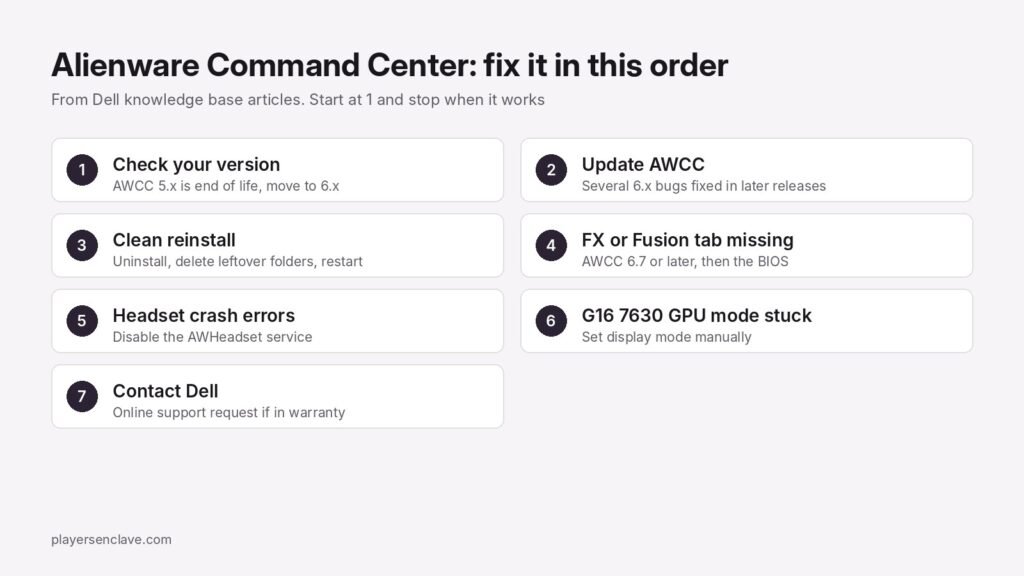
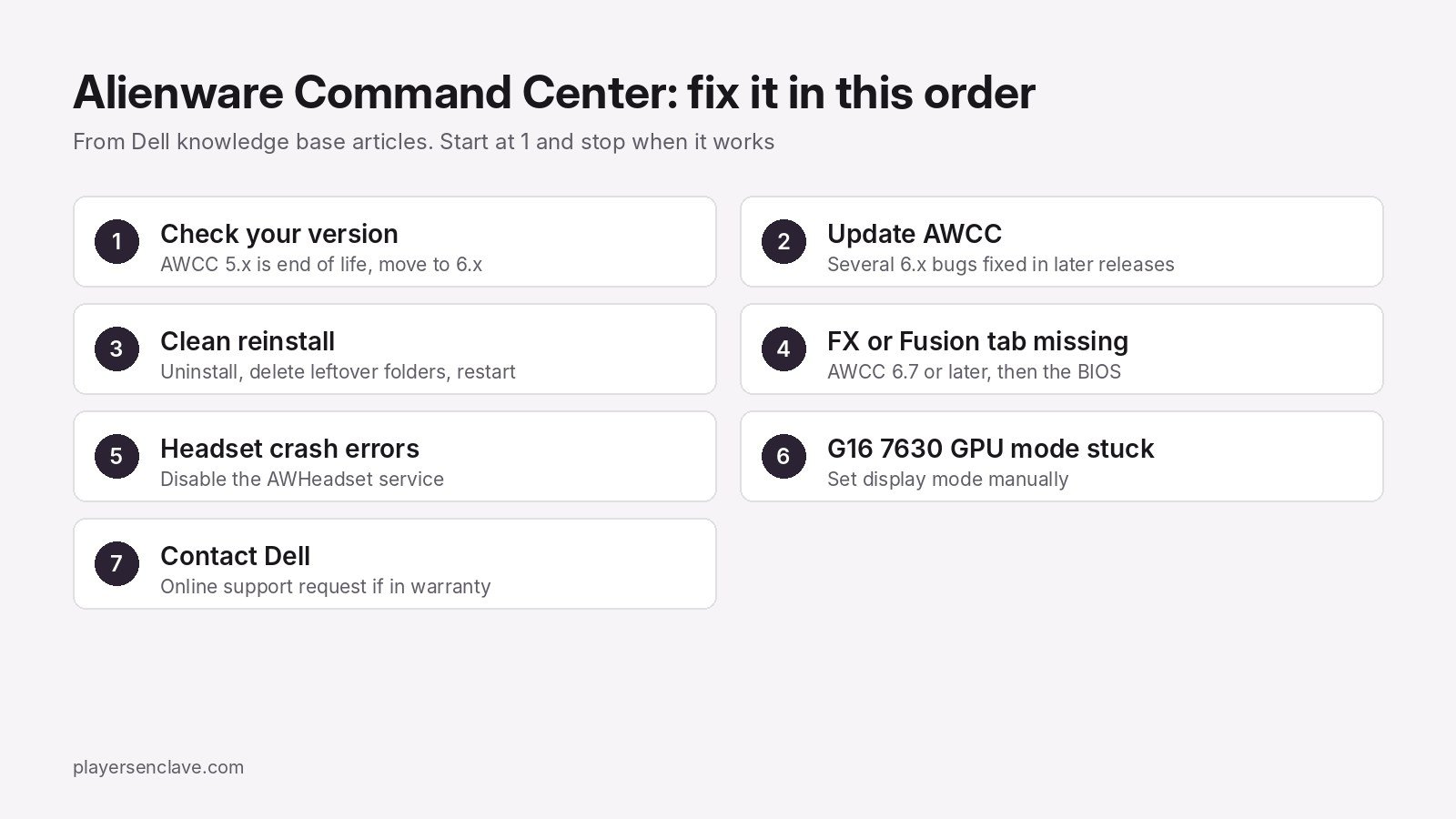
Quick answer: First check which version you have. Dell has ended support for Alienware Command Center 5.x, and several 6.x bugs, including missing FX and Fusion tabs and devices not loading, are fixed in later 6.x releases. If updating does not help, do Dell’s full clean reinstall: uninstall the app, delete its leftover Alienware folders, restart, and install the version listed for your system on Dell’s Drivers and Downloads site.
Alienware Command Center, or AWCC, runs the thermal modes, lighting and performance settings on Alienware and Dell G-series gaming computers, so when it fails you lose control of fans and lighting.
Steps checked against Dell’s knowledge base articles on Alienware Command Center, November 2026.
Fix 1: Check your version and move off AWCC 5.x
Dell’s end of life notice for AWCC 5.x says it no longer receives security patches, issue fixes or feature improvements, and recommends upgrading to 6.x if your system supports it. To upgrade, Dell’s 5.x upgrade guide says to install the latest 5.5.x release first, restart, then run the full 6.x installer. If you are on 5.5.49 or earlier with Windows Smart App Control turned on, a direct jump to 6.x may fail, so do the 5.5.x step first.
Fix 2: Update to a version that fixes your bug
Dell has documented several AWCC 6.x problems that later releases fix:
| Symptom | Affected version | Dell’s fix |
|---|---|---|
| Display, keyboard, mouse or headset do not load in AWCC | 6.3.7.0 | Update to 6.4 or later |
| FX and Fusion tabs missing | 6.x | Update to 6.7 or later, then reinstall the latest BIOS |
| High CPU use after days of uptime | 6.6.x | Update to 6.7.37.0 or later |
Get updates from Dell’s Drivers and Downloads site for your exact system, using your Service Tag or SupportAssist to identify it.
Fix 3: Do a full clean reinstall
Dell’s uninstall and reinstall guide, which applies to all Alienware systems, removes the leftovers a normal uninstall misses:
- Sign in with an administrator account and uninstall Alienware Command Center from Add or remove programs.
- Open the Run dialog, go to
%appdata%and delete any Alienware folder. Do the same in%programdata%. - In
C:\Program Files\Alienware\, delete only the Command Center folder. CheckProgram Files (x86)too, where older versions may sit. - In your Documents folder, delete the AlienFX and Alienware TactX folders.
- Restart, then download the Alienware Command Center Application for your system from Dell’s Drivers and Downloads site, run it and restart again.
Fix 4: FX or Fusion tab still missing
Dell’s missing tabs article blames a coding issue in AWCC 6.x. If the tabs are still gone after updating to 6.7 or later, reinstall the latest BIOS for your system. Dell lists affected models from the m15 R7 and m16 to the x14, x16 and x17 R2, plus the Dell G15 5530, G15 5535 and G16 7630.
Safety note: only install a BIOS listed for your exact system, keep the charger connected and never interrupt the update.
Fix 5: Recurring crash errors from the headset service
If you own an Alienware AW510H or AW988 headset and see recurring 0xc0000005 errors, Dell’s access violation article traces them to the headset service. Its workaround: press Windows + R, open Services, find AWHeadset Service, open its Properties, set Startup type to Disabled and restart.
Fix 6: Dell G16 7630 will not switch GPU mode
On the Dell G16 7630 with AWCC 6.14.20.0, a game launch can trigger “Some applications are preventing the Display Mode change” and leave the laptop on integrated graphics. Dell’s G16 article gives two workarounds: in NVIDIA Control Panel, set Manage Display Mode to Optimus or NVIDIA GPU only instead of Automatic Select, or disable Hybrid Graphics or Advanced Optimus in the BIOS. Dell’s article gives an expected date of November 23, 2026 for a fixed AWCC release.
Fix 7: Contact Dell
If none of this works and your system is under warranty, Dell’s online support request guide explains how to open a case. Note your AWCC version and which fixes you tried.
Which thermal mode should you use once it works?
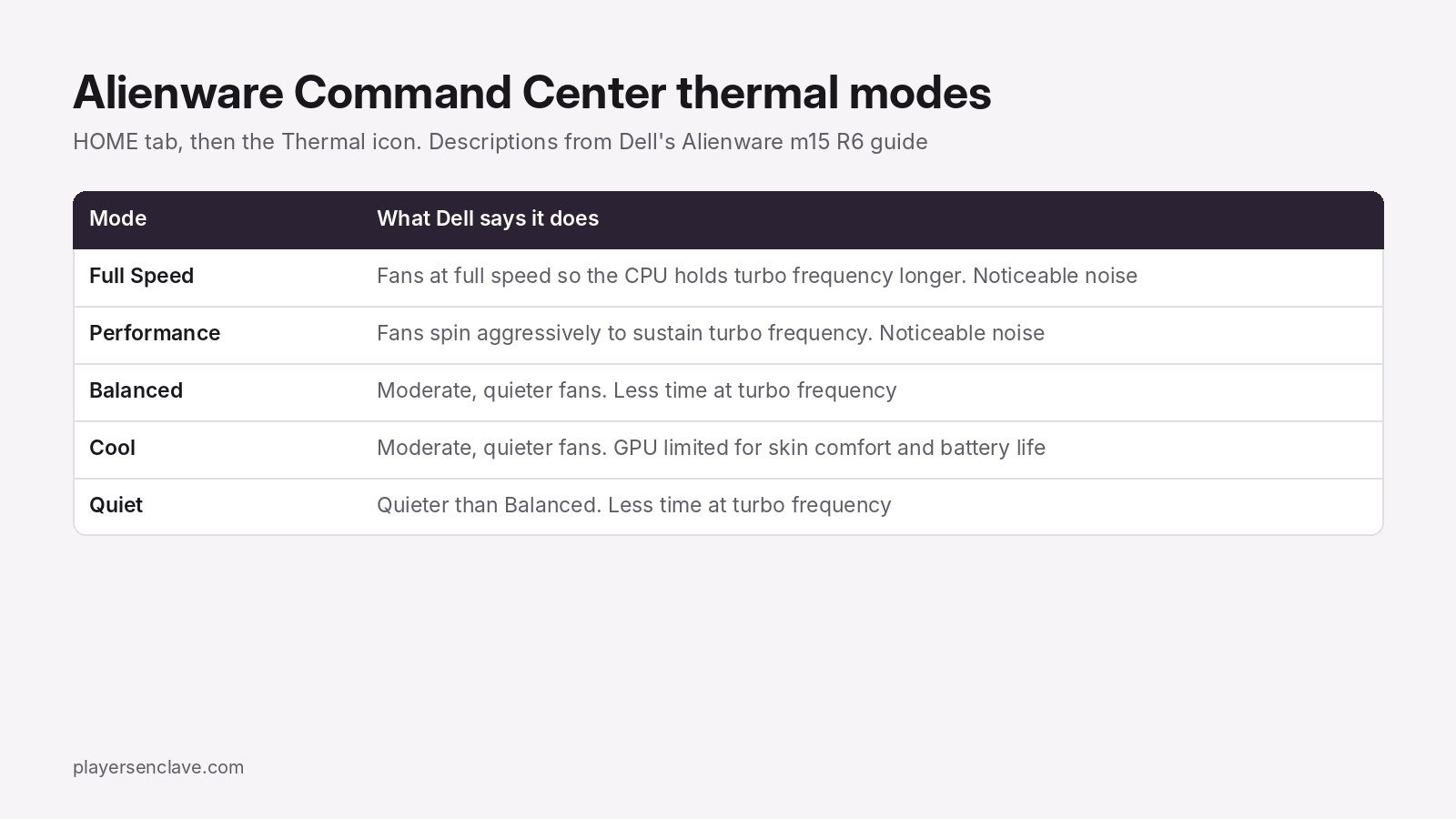
In AWCC, open the HOME tab and click the Thermal icon. Dell’s guide for the Alienware m15 R6 describes five modes. Mode names can vary by model.
If games still feel slow with AWCC working, check that they run on the dedicated GPU with our guide to a laptop not using its dedicated GPU. Owners of other brands can find the same kind of fixes for Armoury Crate, MSI Center and OMEN Gaming Hub.
Photo by Alienware on Unsplash, used under the Unsplash License. Diagrams: PlayersEnclave.