
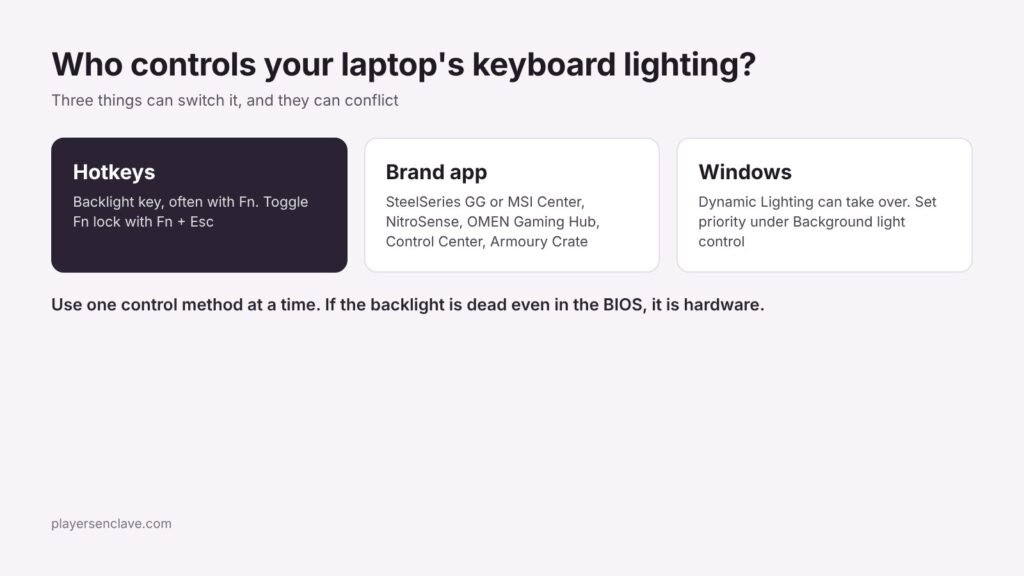
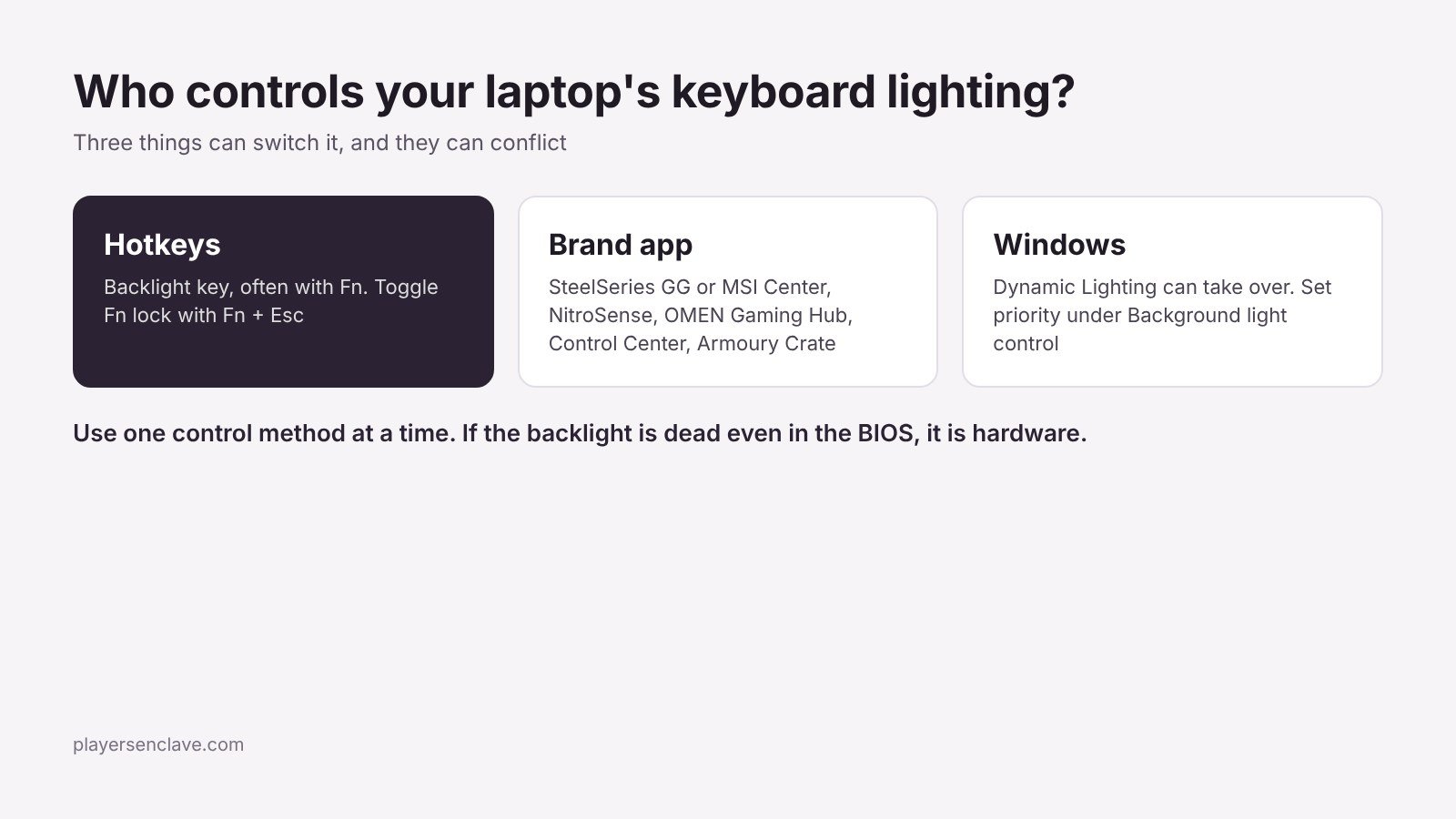
Quick answer: Press your backlight key, with Fn if needed, and toggle Fn lock with Fn + Esc. Check that a battery-saving or silent mode has not switched the lighting off. Then open Settings > Personalization > Dynamic Lighting, since Windows’ own lighting control can override your brand’s app. If the lighting still fails, reinstall the correct lighting app for your exact model, and test the backlight in the BIOS to rule out hardware.
Steps checked against MSI, Acer, HP, Gigabyte, ASUS and Microsoft support documentation, November 2026.
Fix 1: Check the backlight key and Fn lock
The simplest cause is that the lighting is switched off or turned all the way down. HP’s keyboard lighting guide says the backlight key is usually one of the function keys marked with a sun-like icon, pressed with Fn on most models, and that pressing it repeatedly cycles through brightness levels. If the key seems to do nothing, toggle Fn lock with Fn + Esc and try again, a step both HP and MSI recommend. Acer notes that the key’s location varies by model and whether you need Fn depends on your media key setting.
Fix 2: Check power and silent modes
Power-saving modes often switch lighting off. MSI’s RGB troubleshooting FAQ says MSI Center’s Eco-Silent scenario turns the backlight off, and HP suggests checking Battery saver and the power mode under Settings > System > Power & battery, or simply plugging in and testing again. Many laptops also dim the backlight after a short idle period.
Fix 3: Check Windows Dynamic Lighting
Windows 11 can control RGB devices itself through Dynamic Lighting, and it can clash with your laptop’s own app. Microsoft’s Dynamic Lighting guide puts the settings at Settings > Personalization > Dynamic Lighting:
- Use Dynamic Lighting on my devices turns Windows control on or off. When it is off, devices return to their default behaviour.
- Background light control lists the apps allowed to control lighting. Drag the one you want to the top to give it priority.
- If Windows’ brightness and effect sliders do nothing, Microsoft says another lighting app with higher priority is in control.
The conflict works in both directions. In one Acer community report, a Nitro N17’s lighting was taken over by Dynamic Lighting, and turning it off then stopped the laptop’s own Fn lighting keys from working properly. Try one control method at a time: either Windows or your brand’s app.
Fix 4: Use the right lighting app for your brand
| Brand | Where keyboard lighting lives | Source |
|---|---|---|
| MSI | SteelSeries GG if it is listed on your model’s Utility page; otherwise Mystic Light in MSI Center | MSI FAQ |
| Acer Nitro and Predator | NitroSense or PredatorSense, under Scenario, brightness slider | Acer KB |
| HP OMEN and Victus | OMEN Gaming Hub, Lighting, Keyboard: Static, Animation or Off | HP guide |
| Gigabyte | RGB Fusion inside Gigabyte Control Center | Gigabyte guide |
| ASUS ROG and TUF | Armoury Crate (Aura Sync) | ASUS ROG |
| Any Windows 11 laptop | Settings, Personalization, Dynamic Lighting | Microsoft |
Using the wrong app matters most on MSI. MSI’s guide to choosing lighting software warns that installing incompatible software may stop the system from detecting the keyboard properly. It also says to check your model’s specifications first: only keyboards listed as RGB or per-key RGB support colour changes in software, and single-colour backlights cannot be recoloured at all.
If the app itself will not open, our guides cover clean reinstalls for MSI Center, NitroSense, OMEN Gaming Hub and Gigabyte Control Center.
Fix 5: Reinstall the lighting software cleanly
For MSI models that use SteelSeries GG, MSI’s keyboard and RGB troubleshooting guide says to uninstall it, restart, and install the latest version from your model’s Utility tab. In rare cases it also suggests removing the SteelSeries PS/2 Keyboard device and its driver in Device Manager before reinstalling. HP suggests updating the keyboard driver from Device Manager under Keyboards and restarting. Remove any third-party RGB tools while testing, since MSI lists them as a cause.
Fix 6: Test the backlight in the BIOS
This separates software problems from hardware ones. MSI suggests entering the BIOS, with the Delete key at the MSI logo on its laptops, and trying the backlight keys there. If the backlight works in the BIOS, the problem is in Windows or the software. If it stays off, the cause is likely hardware. HP adds that some models have a keyboard backlight option in the BIOS that must be enabled.
Fix 7: Update the BIOS and reset the EC
MSI’s last software step is a BIOS update followed by an embedded controller (EC) reset, which our MSI Center guide explains. Keep the charger connected during any BIOS update and never interrupt it.
If the backlight stays off even in the BIOS, contact the manufacturer. Our warranty guides for MSI, Acer and Gigabyte explain how to claim.
Photo by Vadim Art on Unsplash, used under the Unsplash License. Diagram: PlayersEnclave.