
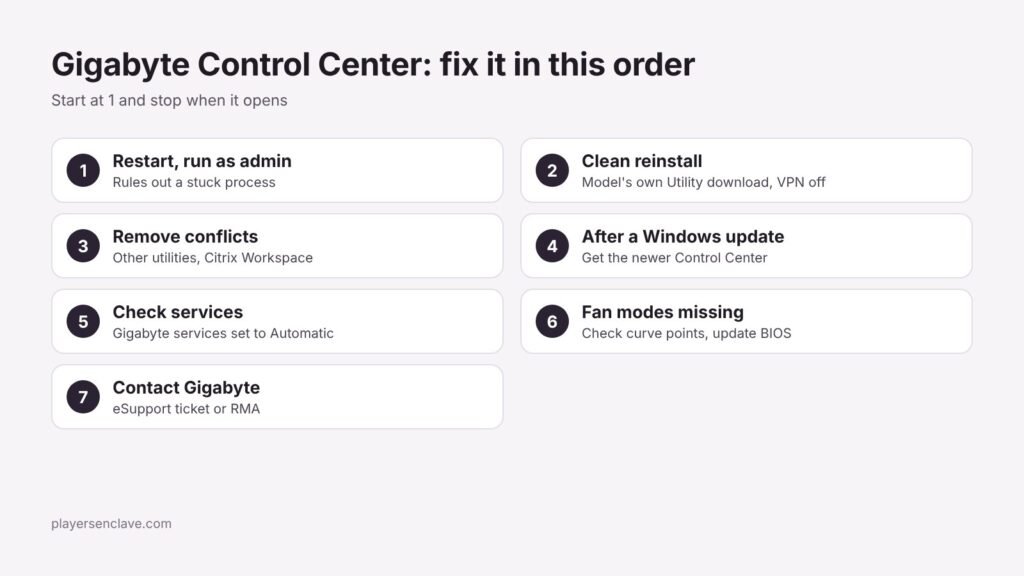
Quick answer: Most Control Center failures on Gigabyte laptops come from a damaged install or a conflict with other software. Uninstall every Gigabyte app, restart, then install the Control Center version listed on your exact laptop model’s support page with your VPN off and antivirus not blocking it. If it still won’t open, look for conflicting software and check whether a recent Windows update broke it.
On Gigabyte laptops, Control Center is more than an RGB tool. It sets the fan and performance modes, so when it stops working the laptop can run louder, hotter or slower than it should.
Steps checked against Gigabyte’s Control Center page, its laptop Control Center guide and Gigabyte support FAQs, October 2026.
Which Gigabyte app controls your laptop?
Before troubleshooting, confirm you are fixing the right app. Gigabyte has used different control software over the years:
| App | Found on | What it does |
|---|---|---|
| Smart Manager | Older Gigabyte laptops | Fan profiles such as Gaming and Customize, per Gigabyte’s overheating FAQ |
| GIGABYTE Control Center | Laptops covered by Gigabyte’s Control Center guide (first published 2021) and later models | Fan and performance modes, RGB Fusion, driver updates, dashboard |
| GiMATE | AI laptops announced from CES 2025 | AI assistant for performance and power settings |
If your laptop’s support page lists Smart Manager, installing Control Center will not fix it. Use the app your model shipped with.
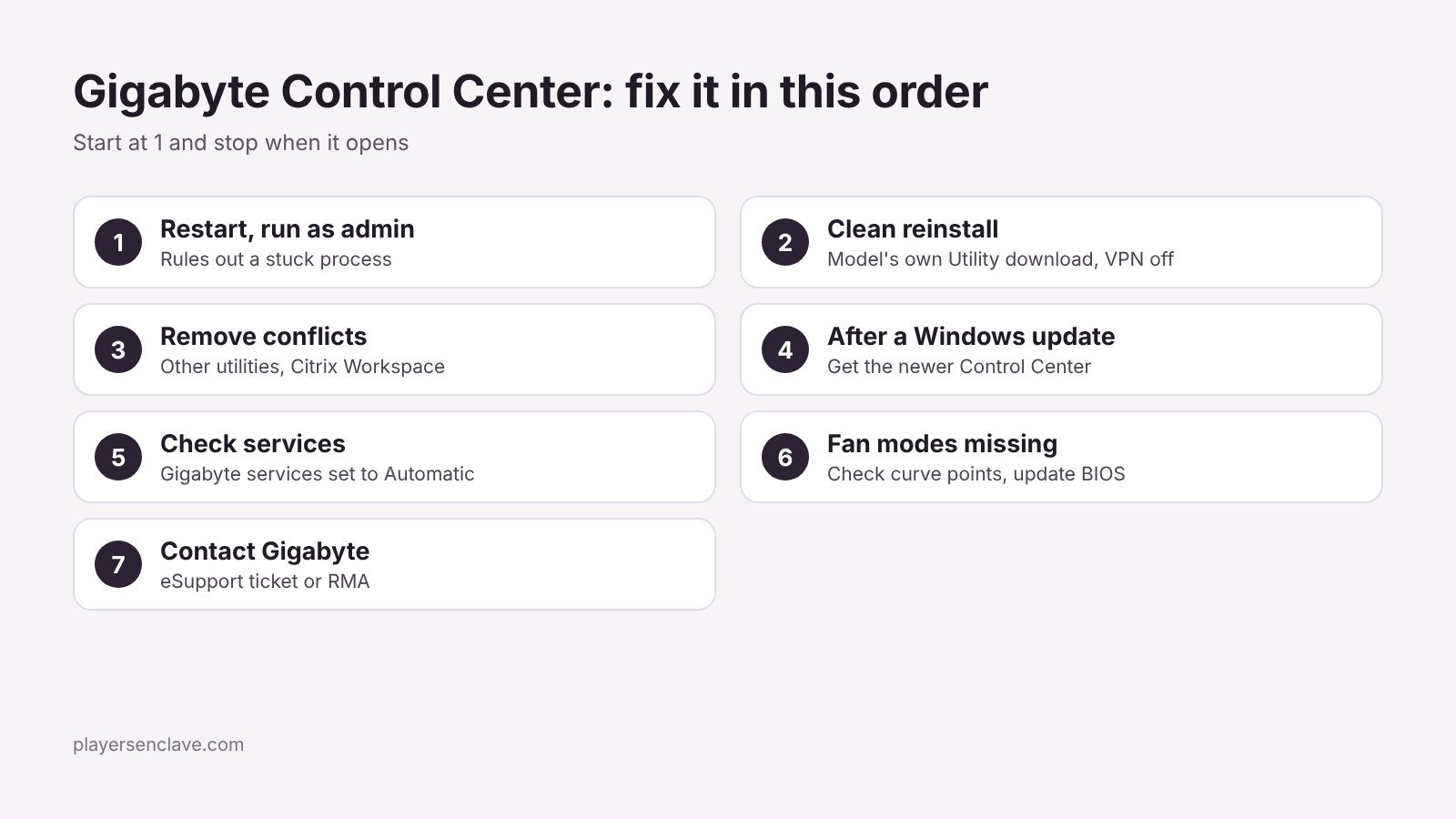
Fix 1: Restart and run it as administrator
Do a full restart rather than waking from sleep, then right-click Control Center and choose Run as administrator. This is also the first step suggested on Microsoft’s Q&A forum when Control Center cannot detect hardware. If it opens this way, the problem is permissions or a stuck background process, and the remaining fixes are not needed.
Fix 2: Do a clean reinstall from your laptop’s support page
This fixes most cases. Gigabyte’s Control Center page recommends removing other Gigabyte software and keeping only Control Center, and lists the conditions an install needs.
- Open Settings > Apps > Installed apps, search for “Gigabyte” and uninstall every Gigabyte utility. Several may uninstall one after another.
- Restart the laptop.
- Go to your exact model’s page on gigabyte.com, open Support, and download Control Center from the Utility section. Laptop fan control depends on model-specific firmware, so the version listed for your model is the one to use.
- Before installing, turn off any VPN, make sure antivirus or “PC optimizer” tools are not blocking the installer, and close Android emulators or other virtual platforms. Gigabyte lists all three as reasons installs fail.
- Install, restart, then open Control Center and let it finish its first update check.
Fix 3: Remove conflicting software
Other hardware utilities, overlays and system tools can stop Control Center from launching. One documented case on an Aorus 15P laptop, in a Microsoft Q&A thread, traced the failure to Citrix Workspace. The accepted fix was to uninstall Citrix Workspace, confirm Control Center opened, then reinstall Citrix and immediately set the Citrix Workspace Advanced Service to Disabled in Services before restarting. If you use Citrix for work, this is the first thing to check.
For any other suspect, uninstall it temporarily, restart and test. If Control Center opens, you have found the conflict.
Fix 4: It stopped working after a Windows update
In the same Aorus 15P case, Control Center version 22.12.20.01 stopped opening after Windows update KB5034843 in February 2024, and reinstalling only helped until the next update. When an update breaks it:
- Check your model’s support page for a newer Control Center release and install it.
- Note the update number from Settings > Windows Update > Update history. You will need it if you contact Gigabyte.
- Gigabyte recommends Windows 11 for the best Control Center compatibility, so Windows 10 users may see more of these breaks.
Fix 5: Check that Gigabyte’s background services are running
Press Windows + R, type services.msc and press Enter. Look for services with Gigabyte in the name. If one is stopped or set to Disabled, set its startup type to Automatic, start it, and restart the laptop. Tuning tools that disable “unneeded” services are a common cause.
Fix 6: Fan modes are missing or not applying
Gigabyte’s laptop Control Center guide puts the fan settings under Device Setting. These are the modes it describes:
| Mode | What it does |
|---|---|
| Normal | Default profile for everyday use |
| Gaming | Raises CPU and GPU performance, with more fan noise |
| Quiet | Lowers fan noise |
| Customize | Sets a fixed or maximum fan speed |
| Deep Control | Custom fan curve with up to 15 control points |
If a custom curve will not save, check for red points. Each point’s temperature and fan speed must be equal to or higher than the point before it, and red marks the ones breaking that rule. If the fan section is missing entirely after a clean reinstall, update the laptop’s BIOS from the same support page, since fan control on laptops runs through model-specific firmware.
Safety note: only install a BIOS file listed for your exact model, keep the charger plugged in, and do not interrupt the update. A failed BIOS update can leave a laptop unable to start.
High readings on their own are not proof of a fault. Gigabyte’s overheating FAQ notes that Intel CPUs can run up to 100°C and Nvidia GPUs up to 87 to 95°C within specification. For what sustained heat does over years, see our guide to gaming laptop thermal degradation.
Fix 7: Contact Gigabyte or use the warranty
If none of this works, open a ticket through Gigabyte’s eSupport system with your model, serial number, Control Center version and the Windows update number. If the fans themselves are not responding, Gigabyte’s FAQ advises against opening the laptop and recommends an RMA instead. Our Gigabyte laptop warranty guide explains what is covered and how to file a claim.
For more on how Gigabyte’s laptops compare overall, see is Gigabyte a good laptop brand and our breakdown of laptops with the best cooling systems.
Diagram: PlayersEnclave.