
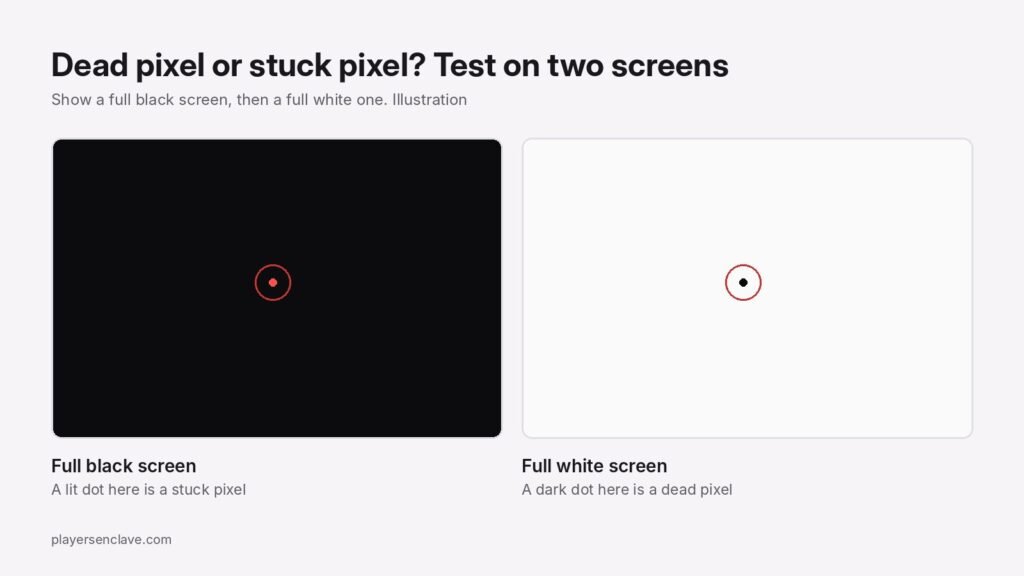
Quick answer: A stuck pixel stays lit, so it shows up as a coloured or white dot on a black screen. A dead pixel stays off, so it shows as a black dot on a white screen. Stuck pixels can sometimes be revived with a pixel-cycling tool; dead pixels usually cannot. Whether the screen is replaced under warranty depends on your brand’s pixel policy, and some are strict: Dell replaces an HD+ laptop display for a single bright pixel during the warranty, while Gigabyte only covers pixel faults for 30 days.
Checked against Dell’s display pixel guidelines, ASUS’s notebook warranty card and Zero Bright Dot article, Gigabyte’s US laptop warranty page, Acer’s guide to stuck and dead pixels and JScreenFix’s own instructions, November 2026.
How to tell them apart
Acer’s guide gives the simplest test. Display a pure black screen: any lit dot is a stuck pixel. Then display a pure white screen: any dark dot is a dead pixel. Dell defines them the same way in its pixel guidelines: a bright pixel has all three subpixels permanently on, a dark pixel has them permanently off, and a single red, green or blue subpixel can be stuck on or off too.
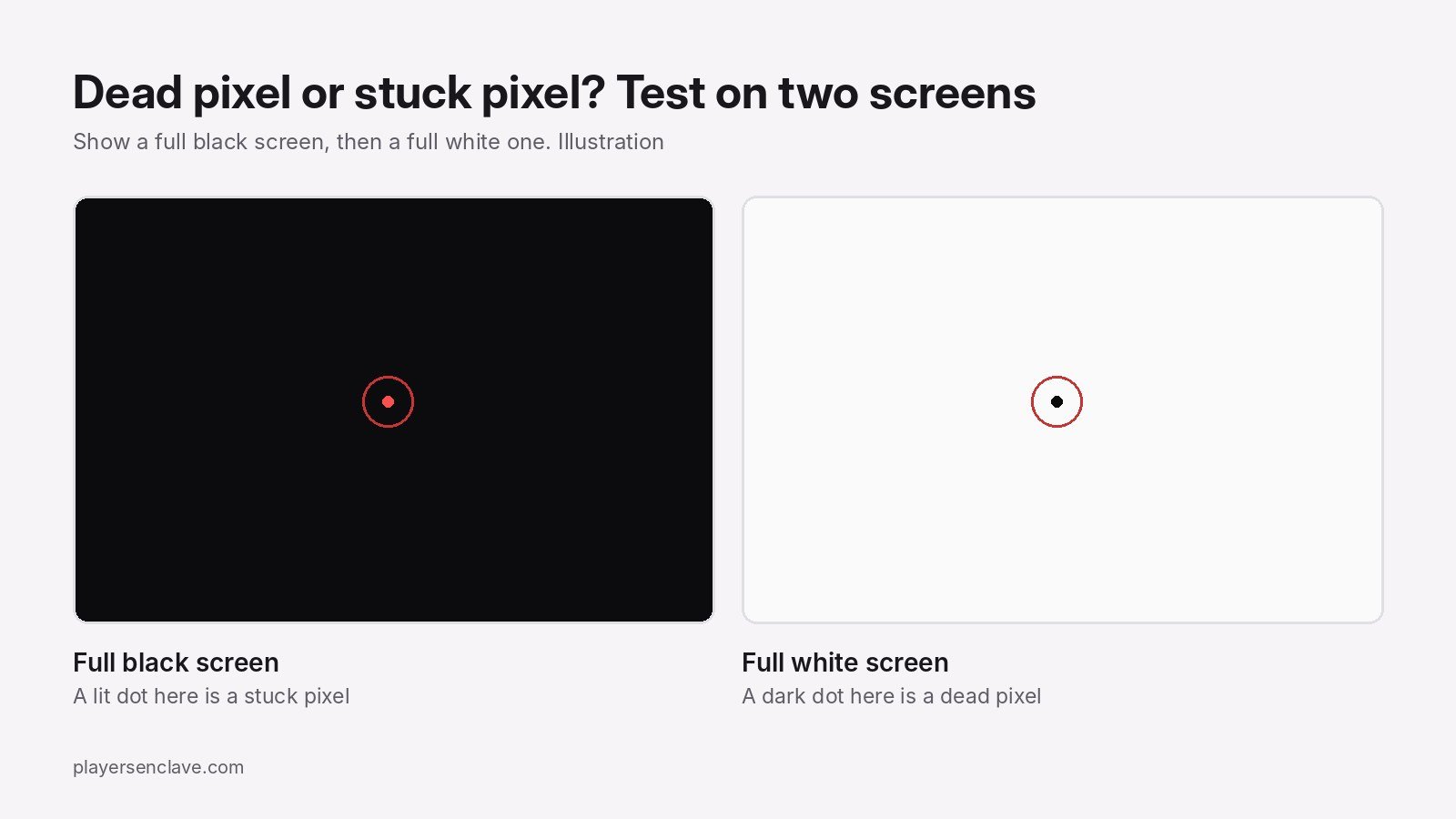
On a Dell laptop, Dell’s guidelines say to run the built-in display test from F12 > Diagnostics at startup.
What you can try on a stuck pixel
- Restart. Acer notes that power cycling can clear a stuck pixel caused by a temporary fault. It will not help a dead one.
- Run a pixel-cycling tool. JScreenFix runs in a browser and rapidly cycles colours over the pixel. Drag its window over the stuck pixel and leave it for at least 10 minutes. JScreenFix itself says that if the pixel is still stuck after an hour, it probably cannot fix it.
- Stop there. Acer’s guide also describes pressing on the screen with a cloth, but warns that too much pressure can break the display. On a laptop under warranty, it is safer to claim than to risk damage the warranty will not cover.
JScreenFix says a black pixel is usually a hardware failure and that software is much less likely to revive a truly dead pixel.
When will the brand replace the screen?
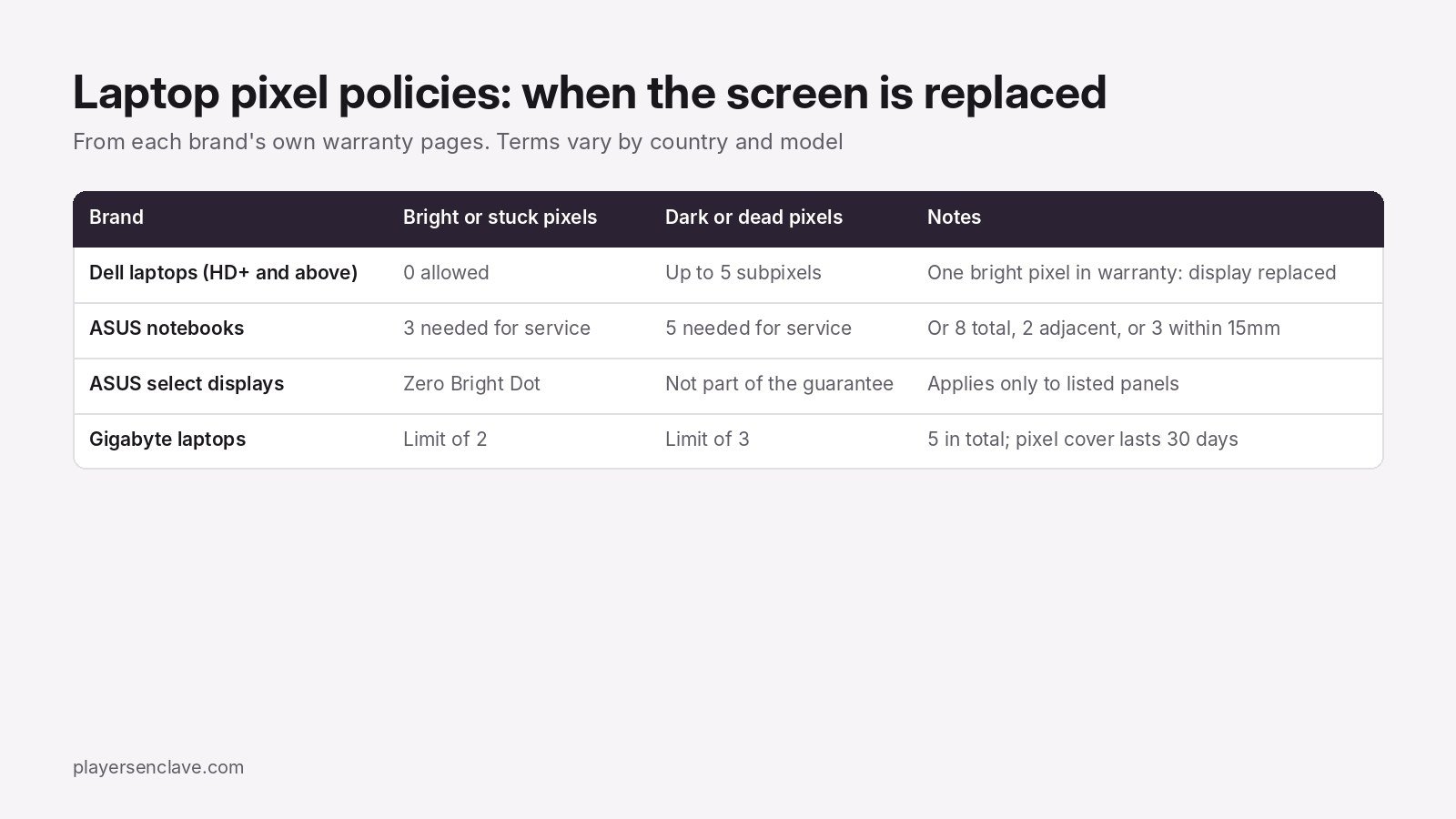
- Dell: on laptops at HD+ (1600 x 900) or higher, Dell allows no bright pixels and up to five dark subpixels. Its Premium Panel Exchange covers all such laptops: one bright pixel during the warranty period and Dell replaces the display.
- ASUS: ASUS’s notebook warranty card provides display service when there are 3 bright pixels, 5 dark pixels or 8 in total, 2 adjacent bright or dark pixels, or 3 within an area 15mm across. Separately, ASUS backs select displays with a Zero Bright Dot guarantee, which does not cover dark dots.
- Gigabyte: Gigabyte’s US laptop warranty page lists limits of 2 bright dots, 3 dark dots and 5 in total, and covers pixel faults for only the first 30 days. After that, they are paid repairs, as our Gigabyte warranty guide explains.
How to make a pixel claim
- Check every new laptop on black and white screens in the first days. With Gigabyte’s 30-day limit, timing matters, and a retailer’s return window may be faster than any warranty claim.
- Photograph the pixel on the test screen and note its position.
- Read your brand’s policy and count the pixels the way it does. ASUS, for example, inspects from at least 30cm under 300 to 500 lux of light.
- Contact support with your serial number and photos. Our warranty guides for ASUS, MSI, Acer and Lenovo Legion explain how each brand’s claims work.
If your screen is stuck at a low refresh rate rather than showing a faulty dot, see our guide to a laptop screen stuck at 60Hz.
Diagrams: PlayersEnclave.