
Quick answer: Open Settings > System > Display > Advanced display and pick the highest rate under Choose a refresh rate. If it keeps returning to 60Hz, check whether it only happens on battery, turn off Dynamic refresh rate if games feel capped, and update or roll back the display driver. If Windows only ever offers 60Hz, even after a driver reinstall, the screen or its connection may be faulty.
Steps checked against Microsoft’s refresh rate support article, Microsoft Q&A answers and ASUS’s support forum, November 2026.
Fix 1: Set the refresh rate in Windows
Gaming laptops sometimes ship, or end up after an update, at 60Hz. Microsoft’s instructions:
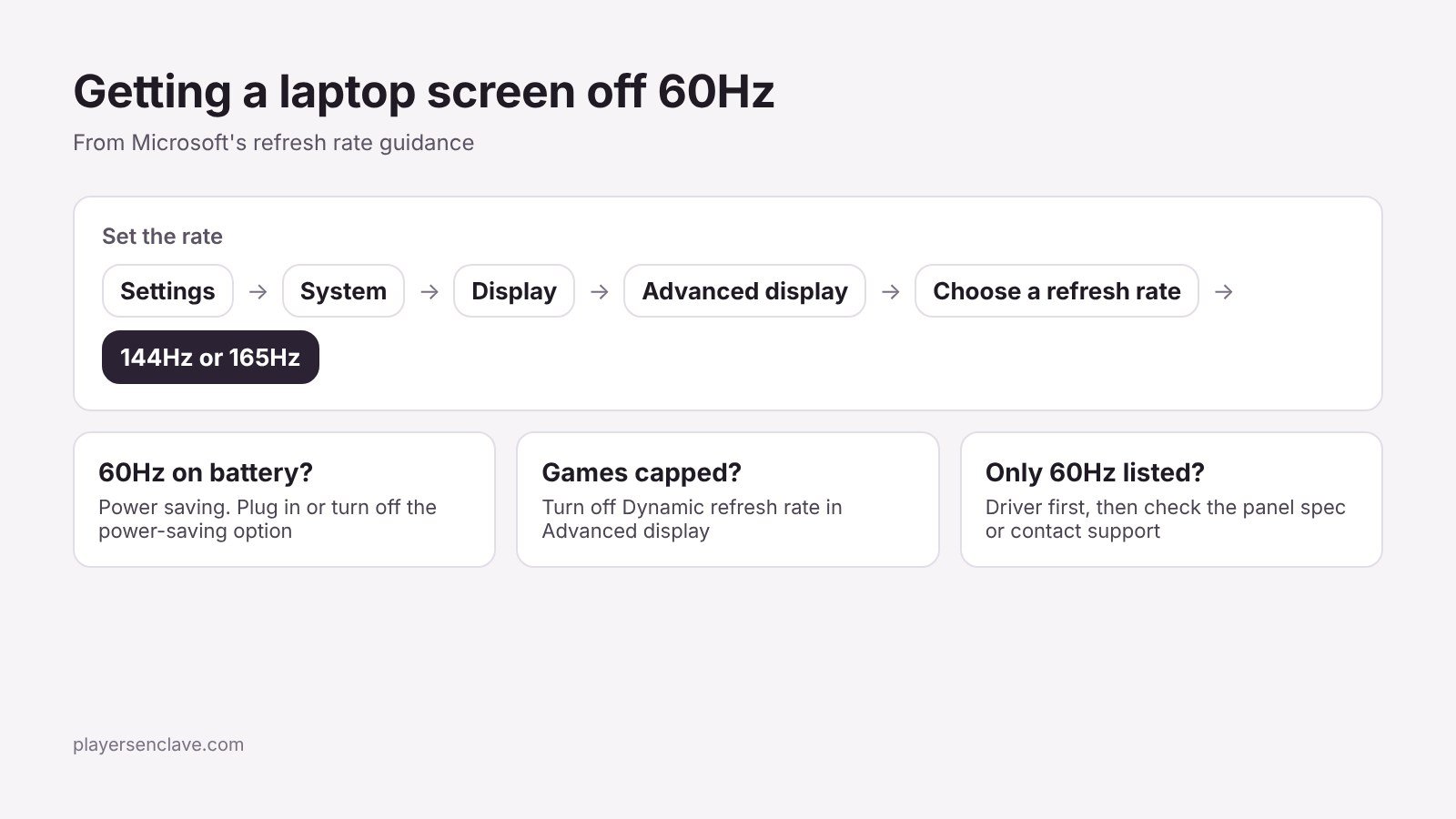
- Open Start > Settings > System > Display > Advanced display.
- Next to Choose a refresh rate, select the highest rate listed, such as 144Hz or 165Hz.
Microsoft notes that rates marked with an asterisk do not support your current resolution, and choosing one will change the resolution. If you have an external monitor connected, make sure you are changing the setting for the laptop’s built-in display.
Fix 2: It drops to 60Hz on battery
Lowering the refresh rate saves power, so laptops often change it with the power source. Microsoft says a lower refresh rate can extend battery life, and in one Microsoft Q&A case, an HP Victus 15’s refresh rate started switching with the charger after a Windows update. If your screen only drops to 60Hz unplugged:
- Plug in and check whether the high rate returns. If it does, the laptop is saving power, not malfunctioning.
- Look in your brand’s control app and in your graphics control panel for battery or panel power-saving options, and turn them off if you want the high rate on battery.
Expect shorter battery life if you keep the high rate unplugged.
Fix 3: Turn off Dynamic refresh rate if games feel capped
Windows 11’s Dynamic refresh rate (DRR) raises and lowers the refresh rate automatically. Microsoft says it requires a display that supports variable refresh rate and at least 120Hz, and that while it should not affect games designed for variable refresh rate, it can limit the maximum refresh rate of other games. To switch it off, go to Settings > System > Display > Advanced display and turn off the Dynamic refresh rate toggle.
Fix 4: Update or roll back the display driver
The answer in the same Microsoft Q&A thread recommends updating or rolling back the display driver. Open Device Manager, expand Display adapters, right-click the graphics device and choose Update driver, or Roll back driver if the problem began after an update. Gaming laptops list two adapters, the integrated graphics and the NVIDIA or AMD GPU, and the built-in screen usually runs through the integrated one, so check both.
The GPU mode matters too. If your laptop has a MUX switch, changing between hybrid and dedicated GPU modes changes which adapter drives the screen. Our guide to a laptop not using its dedicated GPU explains how those modes work.
Fix 5: The high refresh option is missing entirely
If Windows never offers more than 60Hz, even after a driver reinstall and on mains power, first confirm your exact model actually has a high refresh panel, since many laptops are sold in several screen versions. If it should, the fault may be hardware. In one ASUS support forum case, a ROG Strix G17 stayed at 60Hz after driver reinstalls, BIOS updates, an EC reset and a full Windows reset, while an external monitor worked normally. ASUS support concluded the built-in screen was likely faulty and recommended a service centre repair.
Causes at a glance
| Symptom | Most likely cause | Fix |
|---|---|---|
| Always 60Hz, higher rates listed | Windows setting | Choose the higher rate in Advanced display |
| 60Hz only on battery | Power saving | Plug in, or turn off the power-saving option |
| Some games capped | Dynamic refresh rate | Turn DRR off |
| Changed after an update | Display driver | Update or roll back the driver |
| Only 60Hz listed, even after driver reinstall | Panel version or hardware fault | Check the model’s screen spec, then contact support |
If you need a repair, our warranty guides for MSI, Acer and Gigabyte explain how claims work. Check pixel faults early too: some brands, such as Gigabyte, cover dead pixels for only 30 days. To understand what a higher refresh rate gets you in the first place, read our guide to 165Hz screens for gaming.
Photo by Onur Binay on Unsplash, used under the Unsplash License. Diagram: PlayersEnclave.