
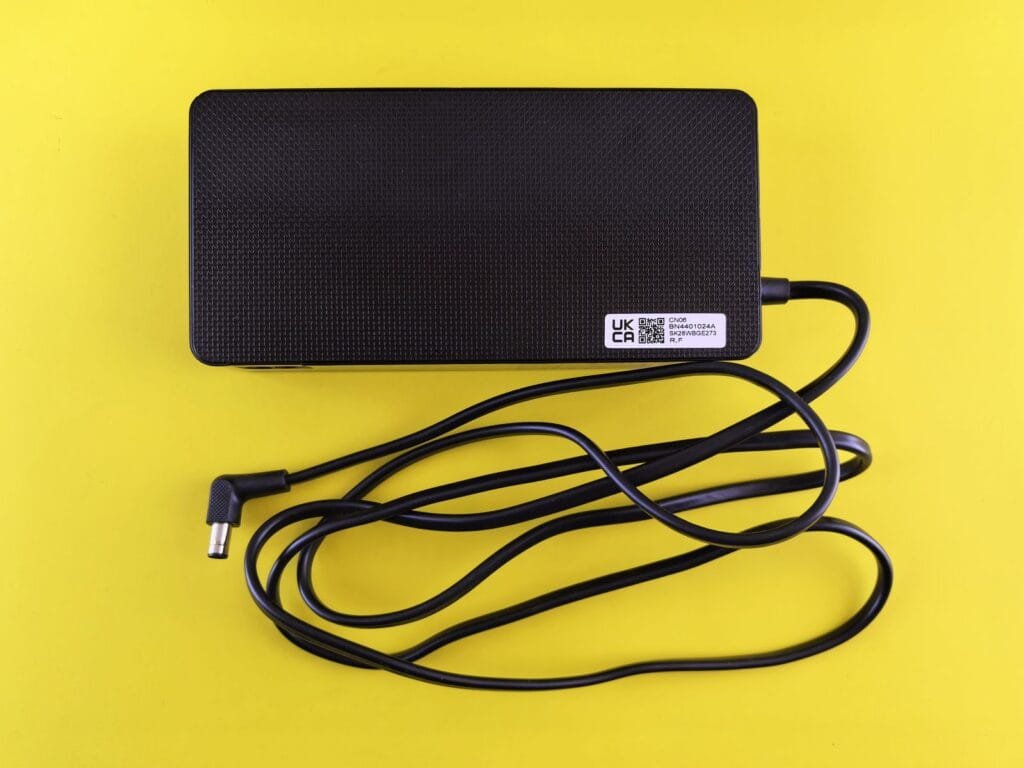
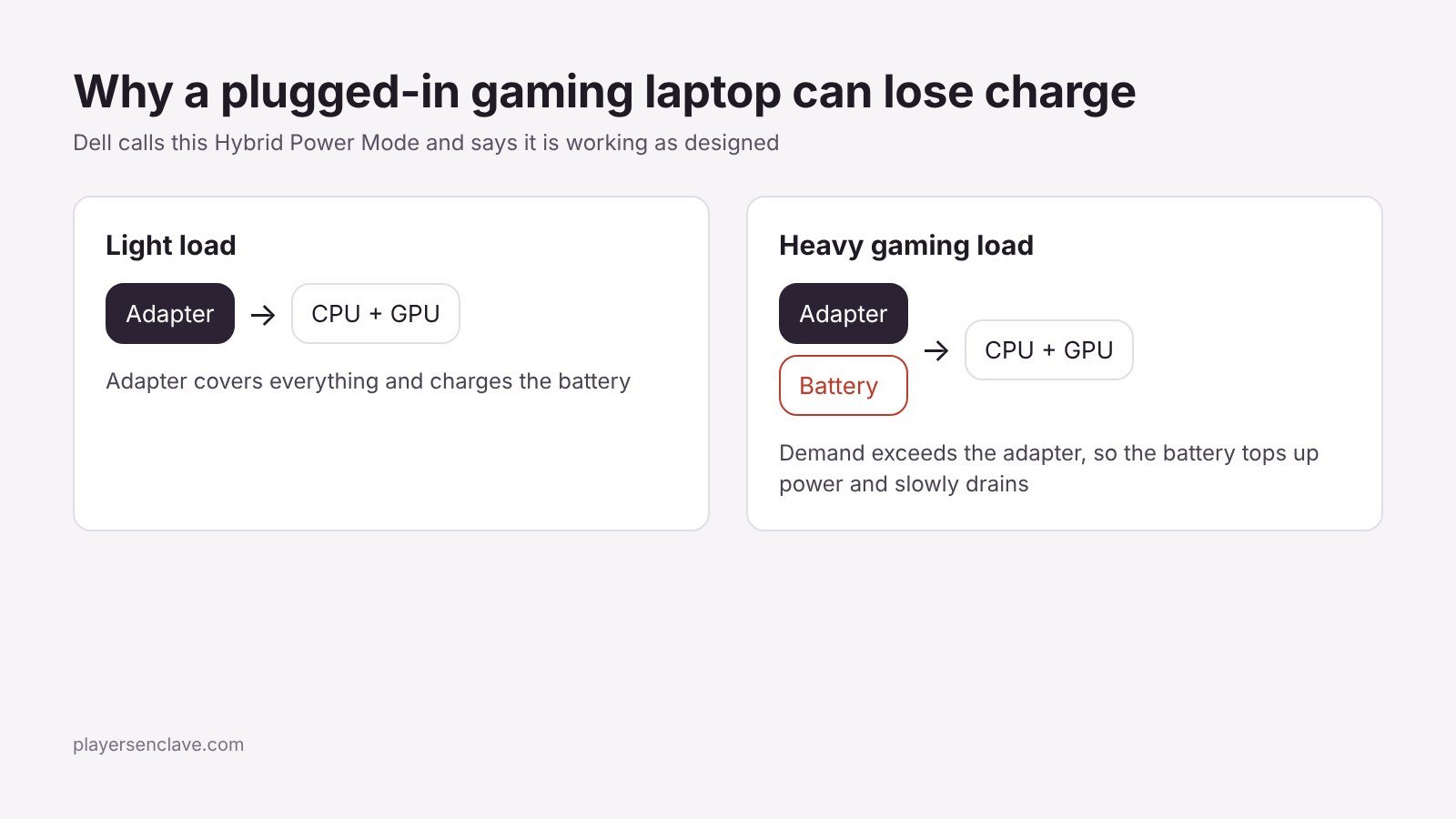
Quick answer: During demanding games, many gaming laptops draw from the battery whenever the CPU and GPU together need more power than the adapter can supply. Dell describes this as working as designed. A slow drain under heavy load is normal. A battery that drains at idle, drains quickly, or shuts the laptop down while plugged in points to the wrong charger, a damaged adapter or cable, a settings issue or a failing part.
Checked against Dell’s support documentation, Dell community support replies, Microsoft’s powercfg reference and the USB Power Delivery specification announcement, October 2026.
Why does a gaming laptop drain while plugged in?
Dell’s support article on this exact problem explains it plainly: when the laptop’s power requirement exceeds the adapter’s capacity, it “starts consuming the battery power without sacrificing performance”. Dell calls this Hybrid Power Mode and says it is working as designed on its G-series and Alienware machines, among others. The behaviour is most likely in 3D games that push the CPU and dedicated GPU hard at the same time.
Owners describe how it looks in practice. In one Dell community thread, an Alienware 17 R5 on its 240W adapter slowly lost charge over long gaming sessions. Another owner reported the drain stopping around 20%, after which the laptop throttled performance instead. Other brands use the same idea under different names, because a gaming laptop’s peak power draw can briefly exceed what a portable adapter delivers.
Is your battery drain normal?
| What you see | Likely meaning |
|---|---|
| Slow drain only in demanding games, recovers when you stop | Normal hybrid power behaviour |
| Charge holds at a fixed level such as 60% or 80% | A battery care or charge limit setting, not drain |
| Fast drain during games, or performance drops sharply | Underpowered or wrong charger, or a USB-C charger |
| Drain at idle or on the desktop while plugged in | Adapter, cable, connector or charging fault |
| Laptop shuts down while plugged in | Fault: stop using it on that adapter and contact support |
Fix 1: Use the original adapter at the right wattage
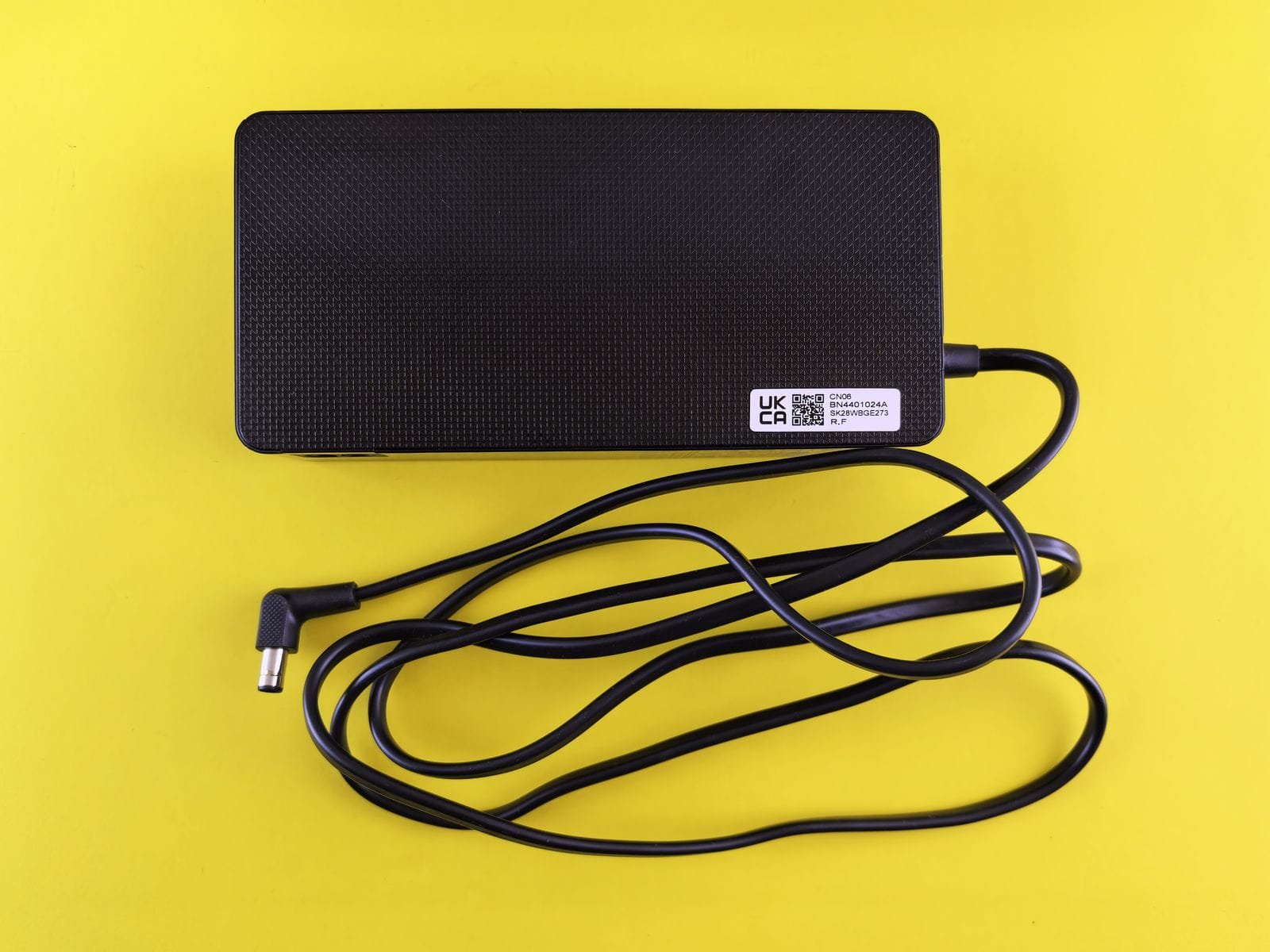
Checking the adapter wattage was the first step Dell’s own support staff suggested in an Alienware discharge thread. Read the output rating on the adapter’s label and compare it with the adapter listed in your laptop’s specifications. A lower-wattage adapter from another laptop may fit the plug but cannot keep up in games. Only use an adapter your laptop’s maker lists for your model.
Fix 2: Do not game on a USB-C charger
Many gaming laptops can charge over USB-C, but USB-C was limited to 100W until the USB Power Delivery 3.1 update raised the ceiling to 240W, and support for higher levels depends on the laptop and charger. Gaming laptop barrel adapters are typically rated far above 100W. USB-C is fine for travel and light use, but for gaming use the barrel adapter that came with the laptop.
Fix 3: Reduce the peak power draw
Because drain starts when demand exceeds the adapter, lowering demand reduces or stops it. Any of these helps:
- Cap the frame rate in the game or in your GPU software, ideally at your screen’s refresh rate.
- Switch from Turbo or maximum performance mode to a balanced mode in your brand’s control app.
- Remove any GPU or CPU overclock.
For a sense of how much power gaming hardware draws, our guide to gaming PC power consumption breaks down the numbers by component.
Fix 4: Check your battery care settings
Most gaming laptop control apps include a battery care or charge limit option that stops charging at a set level to slow battery wear. If your charge never goes above a fixed percentage, check whether this setting is on. That is the laptop protecting the battery, not draining it.
Fix 5: Rule out the adapter, cable and outlet
In the same Alienware thread, one owner found a bent adapter with loose wires, and Dell’s support team suggested trying a different wall outlet and reseating the power cable. Inspect the adapter, its cable and the laptop’s charging port for damage, try another outlet, and avoid cheap extension strips. A damaged adapter is a safety risk, so stop using it and replace it with an approved one.
Fix 6: Update the BIOS and power software
Dell’s support team also recommended a BIOS update, since charging and power behaviour are controlled by firmware. Install BIOS and power management updates from your laptop maker’s support page for your exact model.
Safety note: keep the laptop plugged in during a BIOS update and do not interrupt it. A failed update can stop the laptop from starting.
Fix 7: Check the battery’s health
Windows can produce a battery report. Open Command Prompt, type powercfg /batteryreport and press Enter. Microsoft’s powercfg reference describes it as a report of battery usage over the system’s lifetime, saved as an HTML file in the current folder. Compare the full charge capacity with the design capacity. A large gap means the battery has worn, which makes any drain feel faster.
When should you contact support?
Contact the manufacturer if the laptop drains on the desktop while plugged in, shuts down while plugged in, or does not charge at all with the correct adapter. Batteries and adapters usually carry shorter warranties than the laptop itself, often one year, so act early. Our guides to the MSI laptop warranty and Gigabyte laptop warranty explain how claims work, and our tips on making a gaming laptop last include battery care.
Photo: Pexels, free to use under the Pexels License. Diagram: PlayersEnclave.