
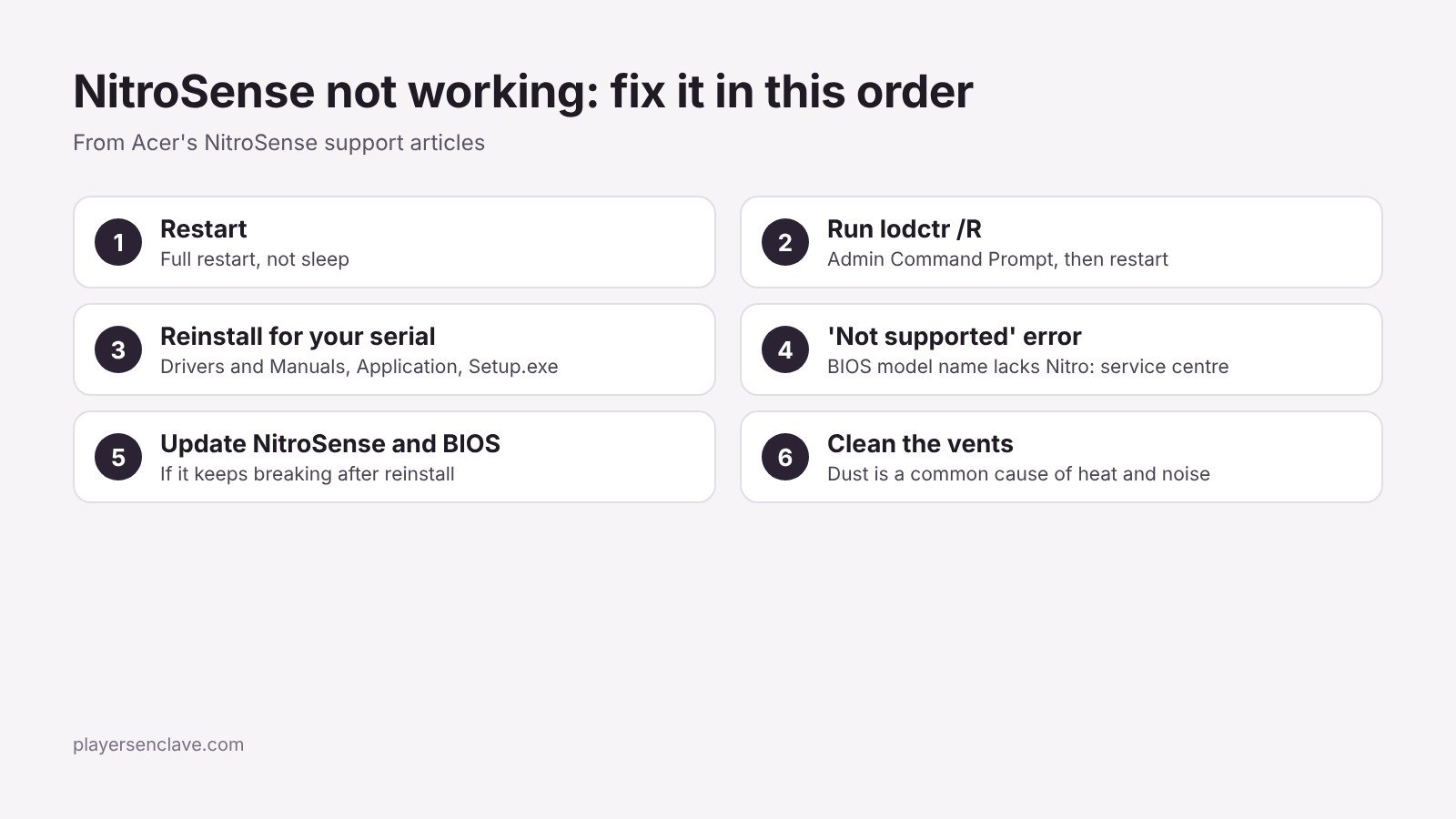
Quick answer: Restart the laptop, then open Command Prompt as administrator, run lodctr /R and restart again. If NitroSense still will not open, uninstall it and reinstall the version listed for your exact model on Acer’s Drivers and Manuals site. If the installer says your computer is not supported, the laptop’s BIOS model name is missing “Nitro”, which only an Acer service centre can fix.
Steps checked against Acer’s support knowledge base articles on NitroSense, November 2026.
Does your laptop use NitroSense?
| Acer laptop | Control app |
|---|---|
| Nitro | NitroSense, preinstalled |
| Nitro Lite | Not supported; Acer offers no NitroSense download |
| Predator | PredatorSense, which adds fan curves and performance modes |
| Any model | Acer Care Center for system information and updates |
According to Acer’s NitroSense guide, the app monitors CPU and GPU temperatures and adjusts fan speed and power plan settings, and its options vary by model. You open it with the NitroSense key or from the Start menu.
Fix 1: Restart the laptop
Do a full restart, not sleep, then try NitroSense again. This is the first step in Acer’s NitroSense troubleshooting article.
Fix 2: Rebuild the Windows performance counters
Acer’s second step rebuilds the Windows performance counters, which monitoring apps rely on to read system data:
- Search for cmd, right-click Command Prompt and choose Run as administrator.
- Type
lodctr /Rand press Enter. - Restart the laptop and open NitroSense.
Fix 3: Reinstall NitroSense from Acer’s site
Acer’s download guide and troubleshooting article give the same process:
- Uninstall NitroSense from the Start menu’s All apps list.
- Go to Acer’s Drivers and Manuals site and enter your serial number, SNID or model number.
- Open the Application category and download NitroSense.
- Extract the zip file and run Setup.exe.
Use the version listed for your serial number rather than a copy from another site. In one Acer community thread, a helper also suggested installing the APPXBUNDLE file from the same download before running Setup.exe, if your download includes one. That is a community tip rather than Acer’s official step.
Fix 4: “Sorry, this computer is not supported”
Acer explains this installer error in a support article: the laptop’s BIOS model name does not contain the word “Nitro”. You can check the model name in Acer Care Center. Only an Acer service centre can correct it. Acer adds that if you have installed a different operating system than the laptop shipped with, NitroSense cannot be installed.
Fix 5: Update NitroSense and the BIOS
If NitroSense works after a reinstall but keeps breaking again, check your model’s support page for newer NitroSense and BIOS versions and install both.
Safety note: only install a BIOS listed for your exact model, keep the charger connected and never interrupt the update.
Fix 6: Fans loud or temperatures high
If NitroSense opens but shows high temperatures and loud fans, Acer’s temperature guide points to dust buildup as a common cause. It also suggests a free tool such as HWiNFO64 to monitor temperatures before and after cleaning. Our guide to making a gaming laptop last covers cleaning, and our laptop cooling guide explains what good cooling looks like.
Still not working?
Contact Acer support in your region with your serial number and the NitroSense version you installed. Our Acer laptop warranty guide explains coverage and the International Travelers Warranty. Owners of other brands will find the same kind of fixes in our MSI Center and Gigabyte Control Center guides.
Photo: cropped from a Pexels photo, free to use under the Pexels License. Diagram: PlayersEnclave.